File Upload During Build Time
- Uploading a file at build trigger time — Users with Build and Deploy permission and above on the application.
- Configuring the File variable in a pipeline — Users with Admin, Manager, or Super Admin permission on the application.
Introduction
When running scripts in a Pre-Build or Post-Build stage, your pipeline may require a file — such as a .env file, SSL certificate, license key, or environment-specific configuration — that should not be committed to your Git repository.
Devtron supports a File type input variable inside Execute custom task. When configured, this variable:
- Mounts the uploaded file inside the build container at a path you define (e.g.,
/devtroncd). - Blocks the build at trigger time until the file is uploaded, if the variable is marked as required and Ask value at runtime is enabled.
- Supports restrictions on file type and file size.
Your shell script can then read the file directly from the mount path during execution.
The File type variable is available in Execute custom task in Pre-Build and Post-Build stages. It is also supported in user-created plugins — if you save a custom task that has a File input variable as a plugin, the File variable carries over and works in that plugin.
Prerequisites
Before you begin, ensure the following:
- You have an existing Build Pipeline configured for your application. Refer to CI Pipeline to set one up.
- You have Admin, Manager, or Super Admin permission on the application to configure the pipeline.
Step 1 — Add a File Variable to a Pre-Build Task
- Go to your application and navigate to App Configuration → Workflow Editor.
- Click on your CI pipeline to open the Edit build pipeline window.
- Select the Pre-Build stage tab (or Post-Build stage, depending on your use case).
- Click + Add task and choose Execute custom task.
- Enter a Task name and optionally a Description.
- Under Input variables, click the + icon next to the VARIABLE column header to add a new variable row.
- Enter a variable name (e.g.,
file). - In the TYPE dropdown, select File.
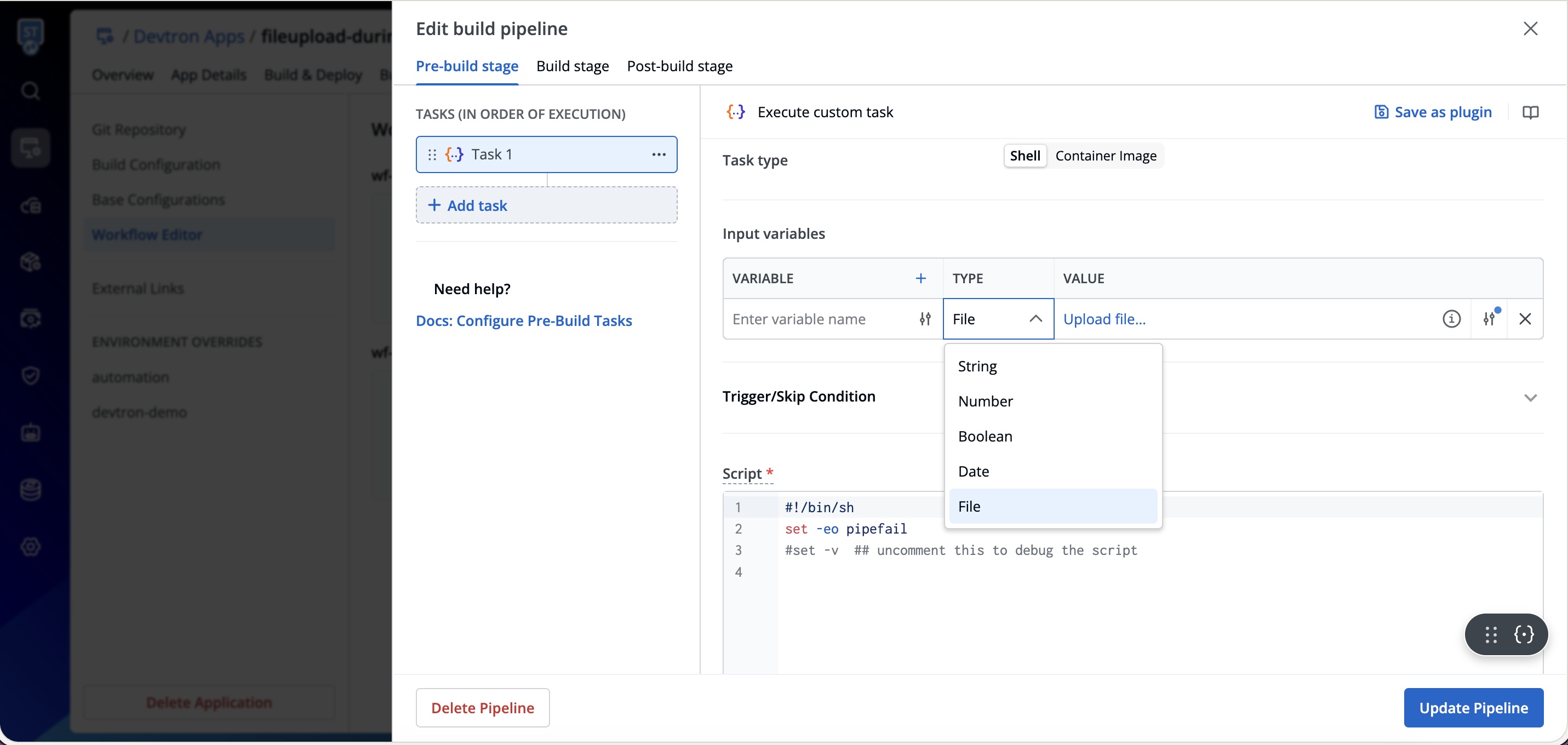
The TYPE dropdown includes: String, Number, Boolean, Date, and File.
Step 2 — Configure the File Variable
When you select File as the variable type, a configuration panel opens with the following options:
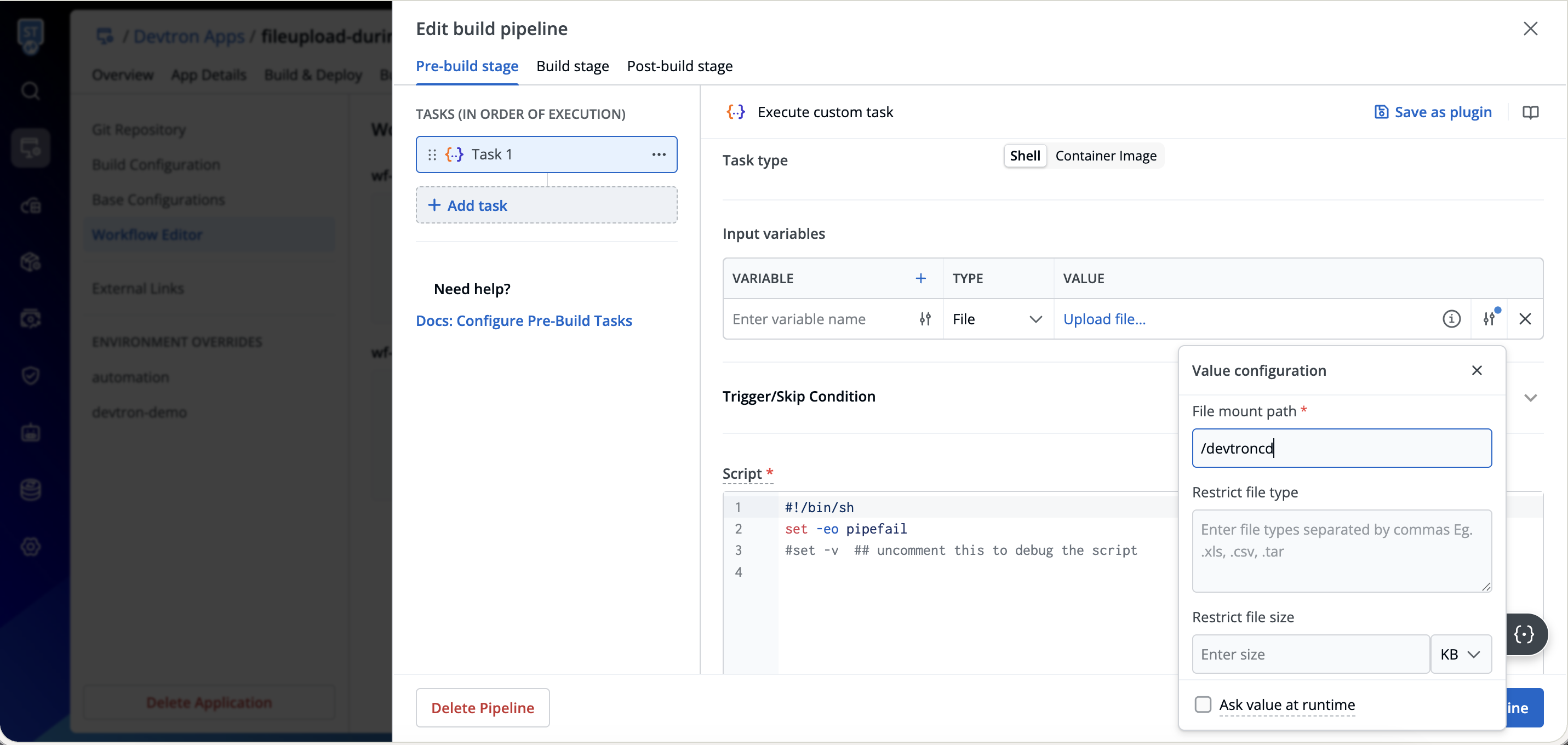
| Field | Required | Description |
|---|---|---|
| File mount path | Yes | The absolute path inside the build container where the uploaded file will be available. Default: /devtroncd. Your shell script references the file from this path. |
| Restrict file type | No | Comma-separated list of allowed file extensions (e.g., .env, .json, .tar). Leave blank to allow all file types. |
| Restrict file size | No | Maximum allowed file size in KB or MB. Leave blank for no size limit. |
| Ask value at runtime | No | When checked along with marking the variable as required, the file upload becomes mandatory at build trigger time. The build is blocked until the user uploads a file. |
Enable Ask value at runtime if the file is required for every build run. Without it, you can pre-upload a default file at pipeline configuration time — see Using a Default File.
Step 3 — Write the Shell Script
In the Script section of your task, reference the uploaded file using the mount path you configured in Step 2.
The file variable is scoped to the task it is defined in. If multiple tasks in the same stage need the same file, add the File variable to each task separately.
Example — Reading an uploaded .env file:
#!/bin/sh
set -eo pipefail

# The uploaded file is available at the configured mount path
CONFIG_FILE="/devtroncd/config.env"

if [ -f "$CONFIG_FILE" ]; then
  echo "Config file found. Loading environment variables..."
  export $(cat "$CONFIG_FILE" | xargs)
  echo "Build will proceed with DB_HOST=$DB_HOST"
else
  echo "Error: Config file not found at $CONFIG_FILE"
  exit 1
fi
The filename inside the mount path will match the name of the file uploaded by the user at trigger time.
Once done, click Create Pipeline (or Update Pipeline for an existing pipeline) to save. The file variable configuration will be enforced on the next build trigger.
Step 4 — Trigger a Build and Upload the File
When you trigger a build for this pipeline, Devtron enforces the file upload if Ask value at runtime is enabled.
-
Navigate to Build and Deploy and click Select Material on your pipeline.
-
In the Build Pipeline modal, go to the Code Source tab and select the branch and commit you want to build.
-
Click Start Build.
If the file variable has Ask value at runtime enabled and no file has been uploaded, Devtron blocks the build and displays an error: "Please resolve all the errors before starting the build". The Parameters tab will be highlighted with a red indicator.
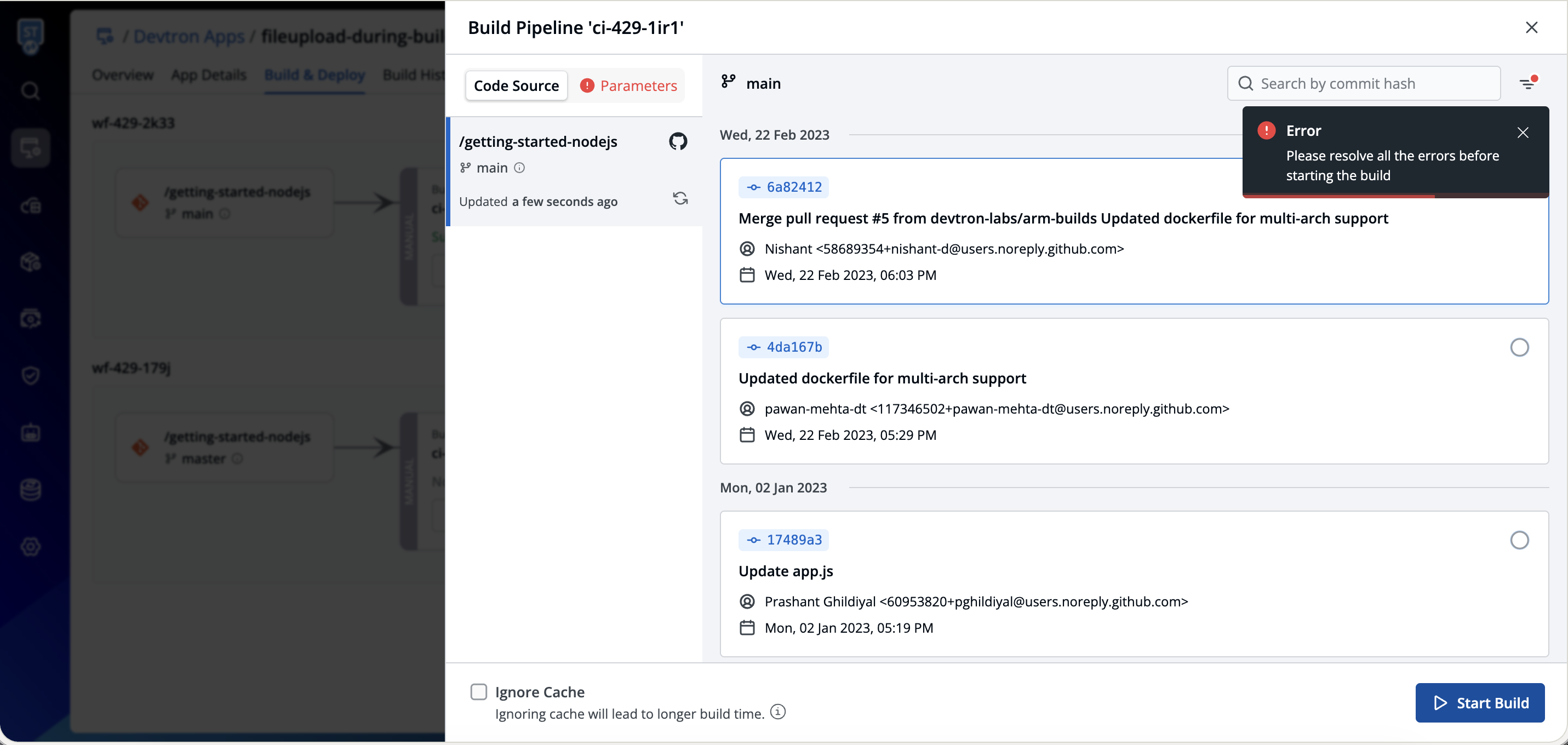
-
Click the Parameters tab. The Runtime parameters table lists your file variable with a
*asterisk indicating it is required, and the Value field outlined in red showing Upload file....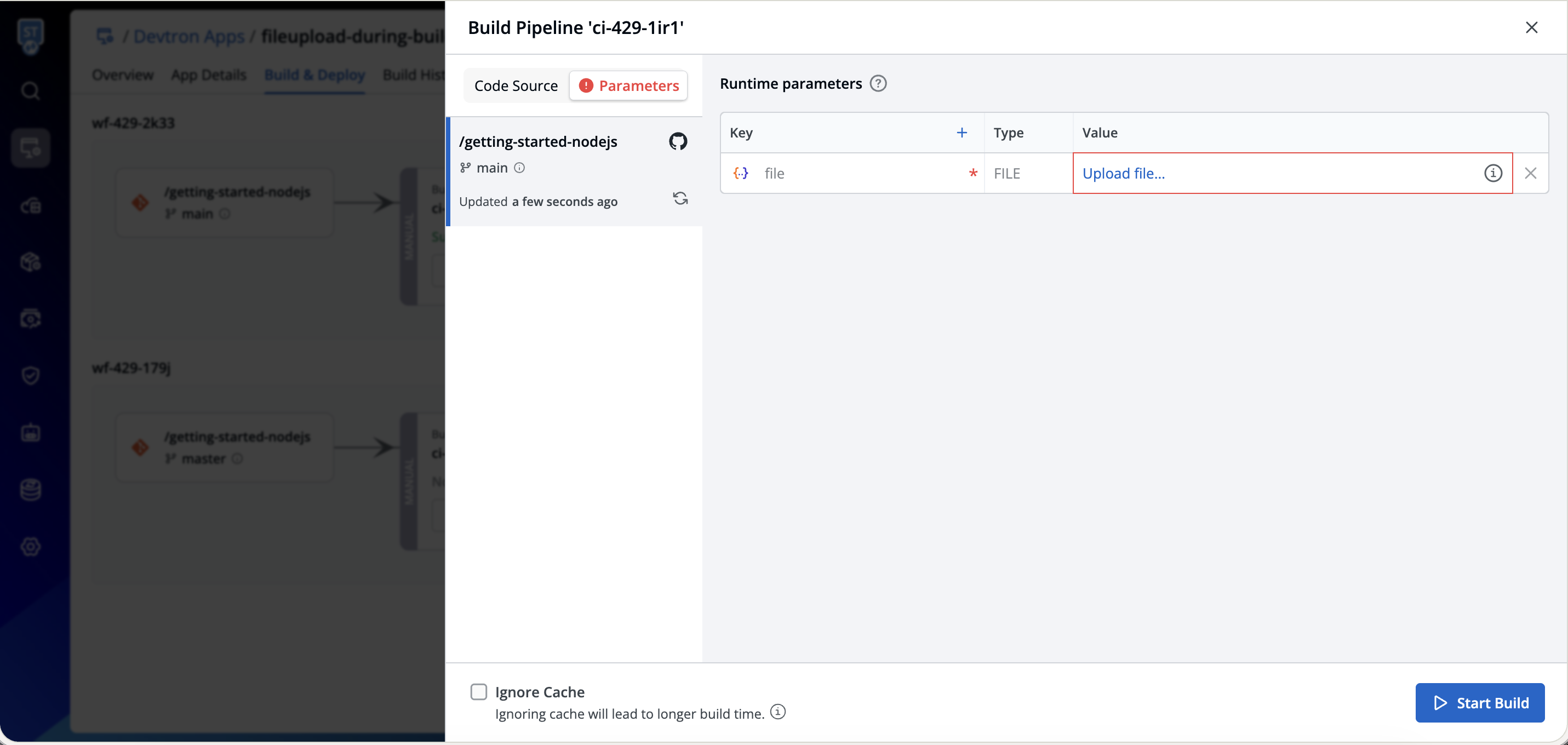
-
Click Upload file... and select the file from your local machine.
-
Once uploaded, the red indicator clears. Click Start Build to proceed.
Using a Default File (Without Ask Value at Runtime)
If your pipeline uses the same file for most builds and only needs occasional overrides, you can pre-upload a default file directly in the pipeline editor — without enabling Ask value at runtime.
- Follow Steps 1–2 above to configure the File variable.
- Leave Ask value at runtime unchecked.
- In the Value field of the variable, click Upload file... and select a default file from your local machine.
- Save the pipeline.
This default file will be used automatically for every build run. Users can still override it at trigger time by uploading a different file in the Parameters tab — but the build will not be blocked if they don't.
If Ask value at runtime is not enabled and no default file is uploaded, the variable will be empty at build time. Ensure your script handles this gracefully.
How the File Is Available Inside the Build Container
Once the build starts, the file is mounted at the path you configured (e.g., /devtroncd). Your script can access it directly:
# List files at the mount path to confirm the upload
ls /devtroncd/

# Reference the file in your script
cat /devtroncd/config.env
The uploaded file is available only for the duration of the build. It is not persisted after the build container terminates. Do not rely on this file being available in subsequent builds or other pipeline stages. For sensitive files such as certificates or secrets, the file is discarded once the build completes, leaving no residual copy in the system.
Use Cases
| Use Case | Recommended File Type |
|---|---|
| Inject environment-specific variables without committing to Git | .env |
| Provide SSL/TLS certificates required during the build | .pem, .crt |
| Pass a license key file needed by a build tool | .lic, .key |
| Upload an environment-specific configuration file | .json, .yaml |
| Provide a secrets archive for deployment tooling | .tar, .zip |
Notes
- File variables are supported in both Pre-Build and Post-Build stages, inside Execute custom task only.
- The file variable is scoped to the task it is defined in. Add it to each task separately if multiple tasks need the same file.
- The file upload is per-build — if Ask value at runtime is enabled, a fresh upload is required for each build trigger.
- If Ask value at runtime is not enabled, you can pre-upload a default file directly in the pipeline editor. This file will be used for every build run unless overridden at trigger time.
- The mount path
/devtroncdis writable inside the build container and is the recommended default. - Uploaded files are ephemeral — they exist only for the duration of the build and are not retained afterward.
Troubleshooting
| Issue | Possible Cause | Resolution |
|---|---|---|
| Build starts without prompting for a file | Ask value at runtime is not checked | Edit the pipeline and enable Ask value at runtime on the file variable |
| Script cannot find the file at the mount path | Wrong mount path configured, or filename mismatch | Confirm the mount path in the variable config and check the exact filename with ls /devtroncd/ |
| File upload field shows no error but build fails | File type or size restriction violated | Check the Restrict file type and Restrict file size settings in the variable config |
| Parameters tab does not show the file variable | Variable was not saved correctly | Re-open the pipeline editor and verify the variable exists with type File |
| Next build uses the old default file | Ask value at runtime is off and no new file was uploaded | Upload a new file in the Parameters tab at trigger time, or update the default file in the pipeline editor |
| File is not available in a subsequent pipeline stage | Files are ephemeral and scoped to the build container | Re-upload the file for each build, or store the file in an artifact or external storage between stages |