Manage Categories
Categories help you group and classify both clusters and environments based on your organization’s standards. Teams commonly use categories like prod, QA, dev, or stage for quick filtering and visual clarity across the Devtron UI. This page guides you through creating, updating, and deleting categories, along with the rules that govern naming and usage.
Add Category
Before assigning a category, you must first add the category. To add a category, follow the steps below:
-
Go to Global Configurations and click Clusters and Environments.
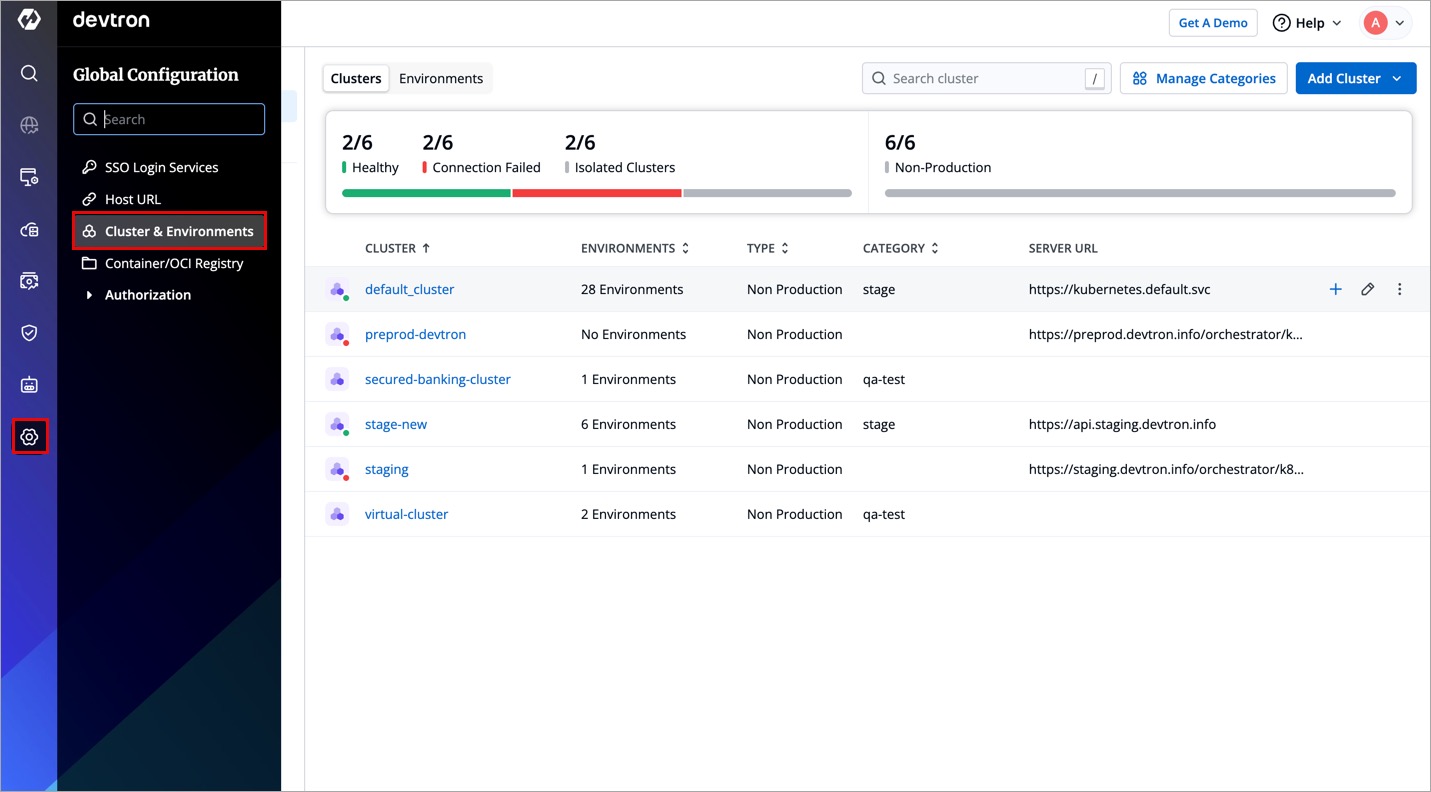
Figure 1: Navigating to Global Configurations -
Click Manage Categories, a modal window will open.
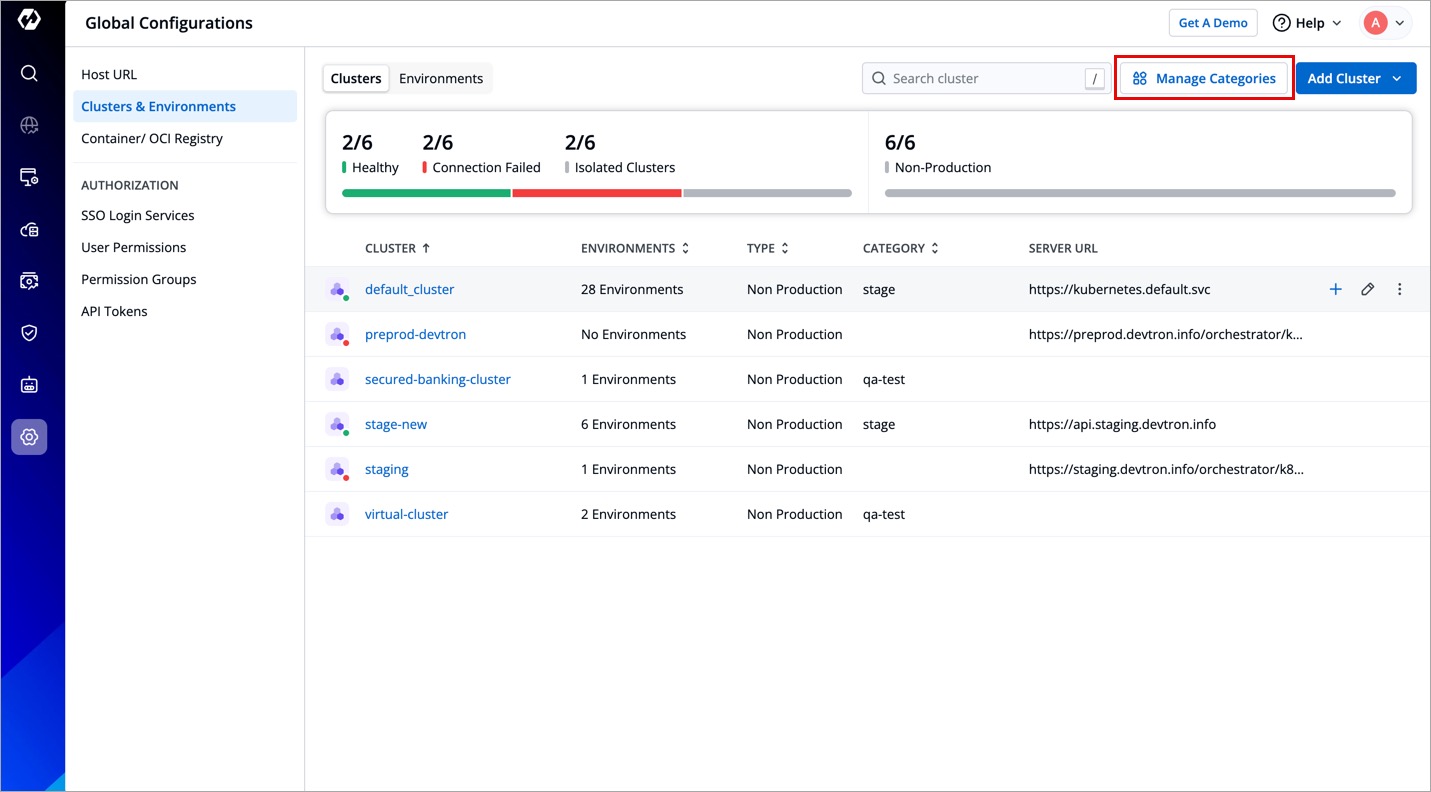
Figure 2: Clicking Manage Categories -
Click Add Category, a new row will appear, enter the name and description of the new category.
- The category name must be unique and cannot be changed once defined. It should be a minimum of 3 characters.
- It can contain alphanumeric characters, but cannot start with a number.
- The name should be in lowercase only.
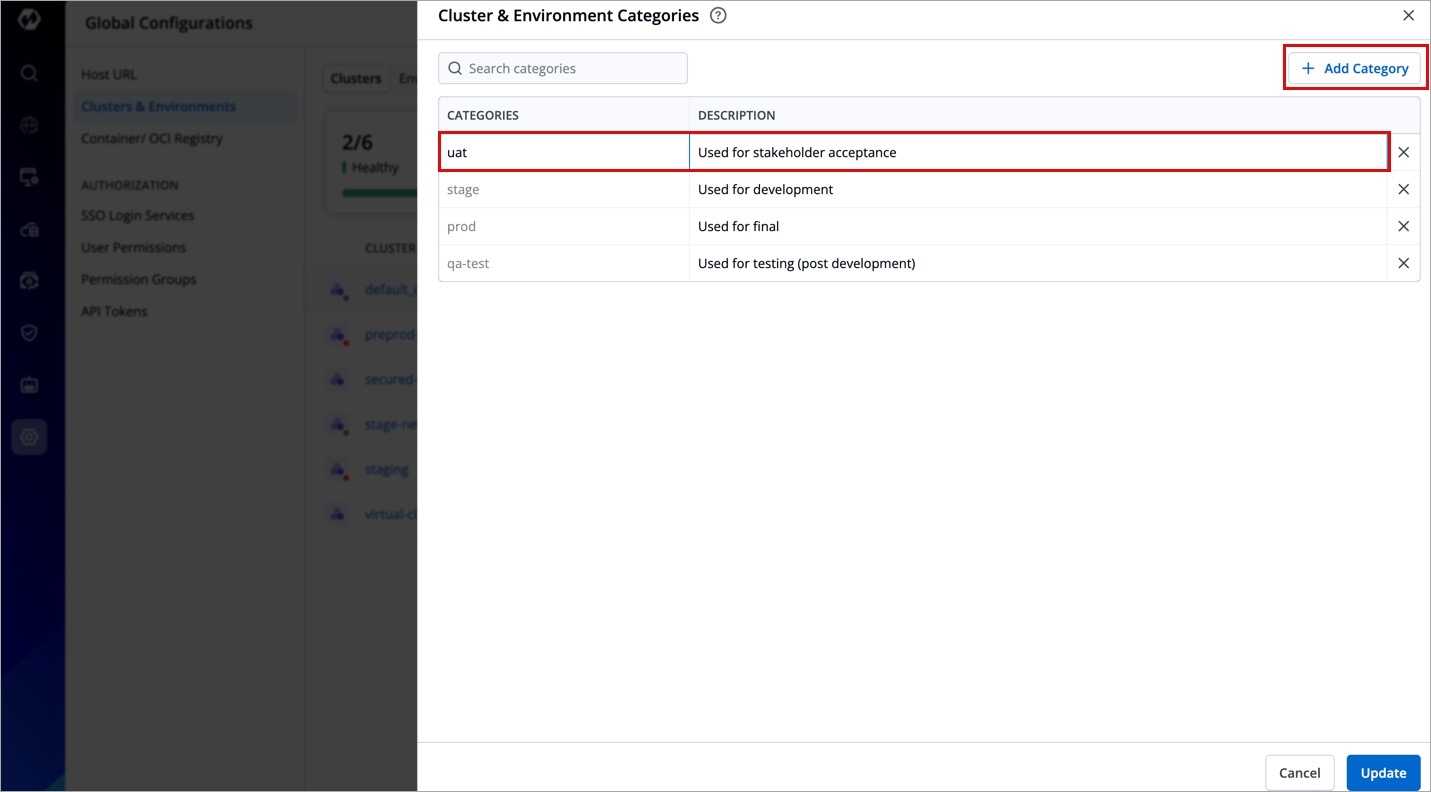
-
Click Update and your categories will be added.
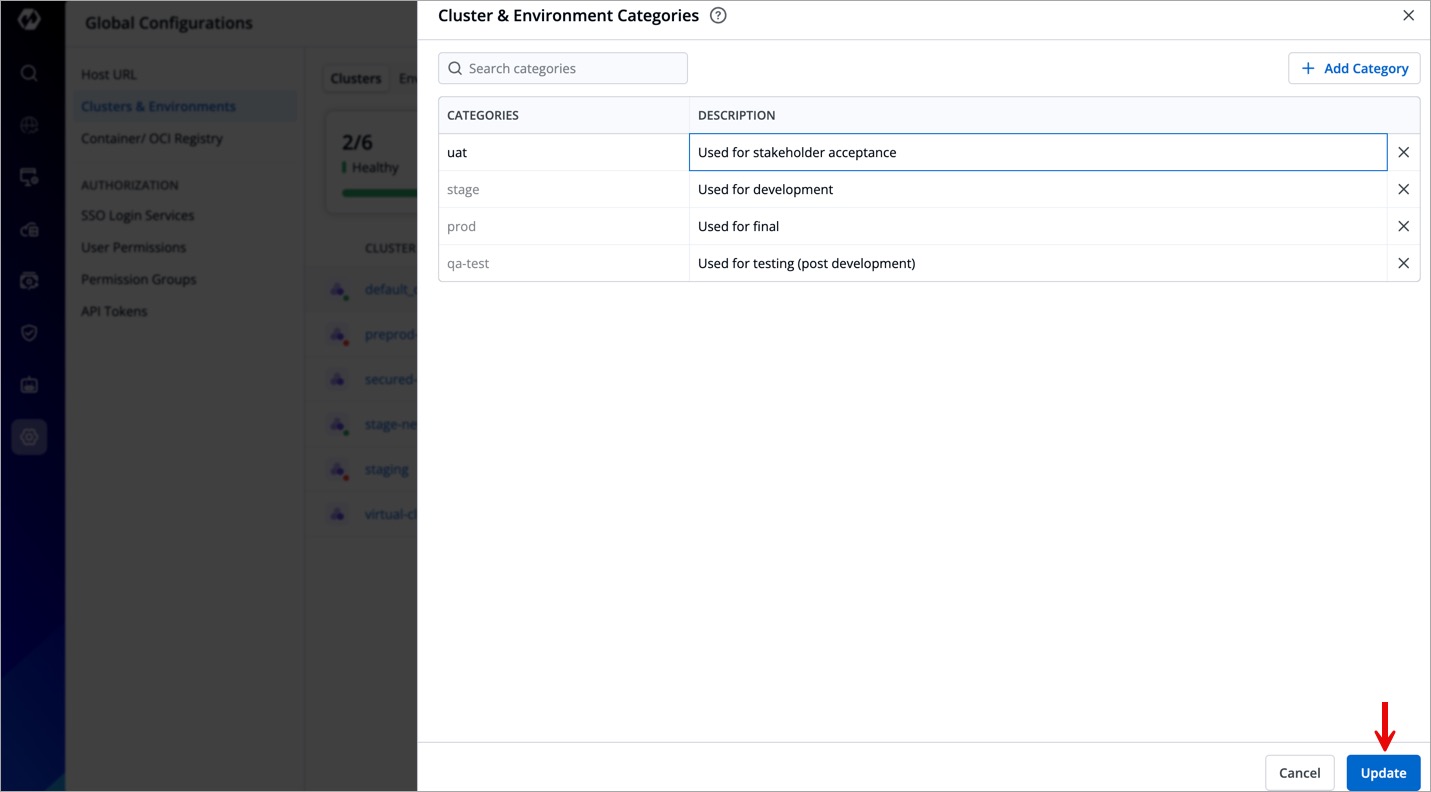
Figure 4: Categories Added
Delete Category
To delete a category, follow the steps below:
-
Go to Global Configurations and click Clusters and Environments.
Figure 5: Navigating to Global Configurations -
Click Manage Categories, a modal window will open.
Figure 6: Clicking Manage Categories -
Select the
xicon next to the categories you want to delete.Note: You cannot delete a category if it is assigned to a cluster or environment.
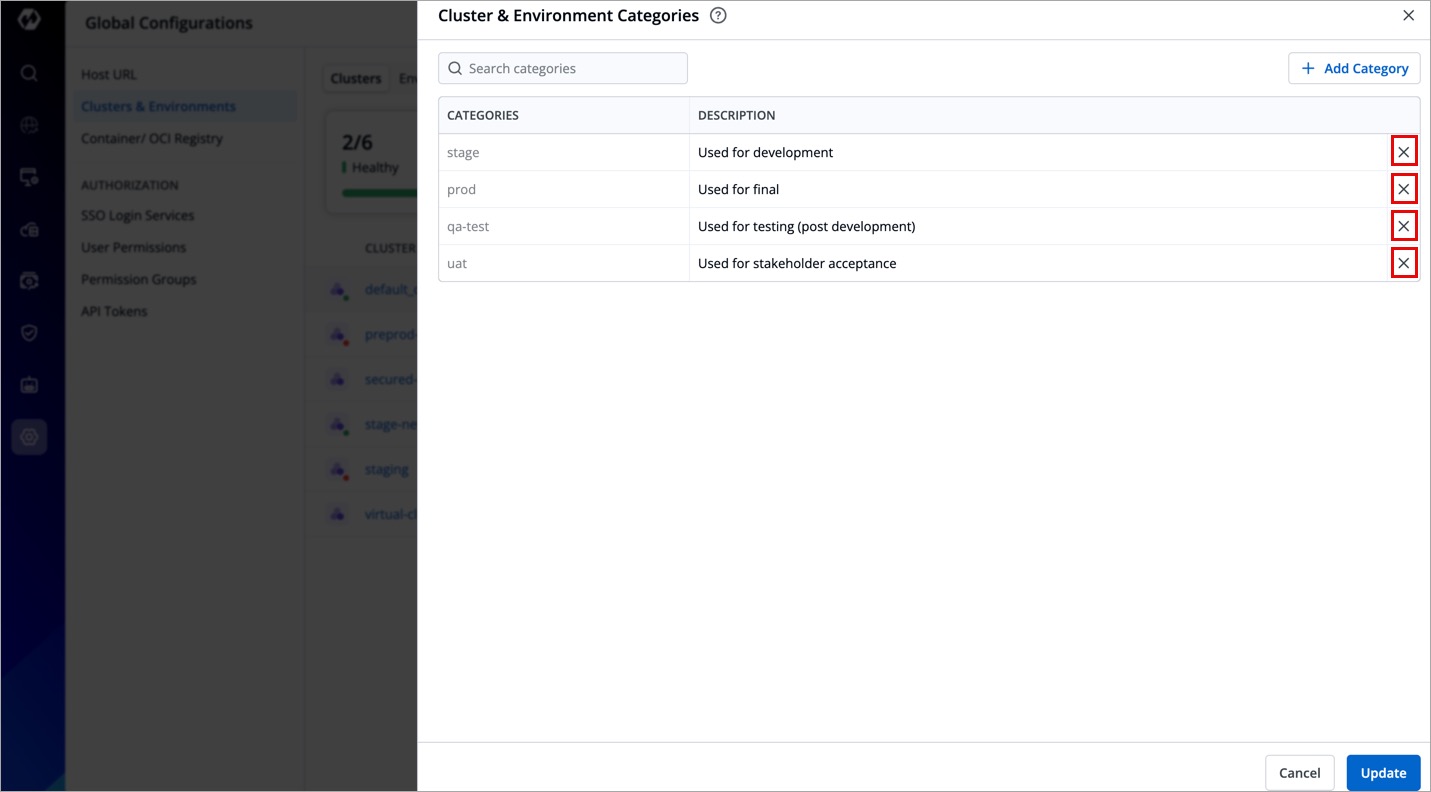
Figure 7: Clicking 'x' icon -
Click Update to delete the categories.