Install Devtron Freemium
Introduction
With Devtron Freemium, you can access all the enterprise features limited to 1 cluster managed by Devtron. For your advanced and challenging use cases, you get comprehensive enterprise features including but not limited to:
- Release orchestration
- Resource monitoring
- Advanced filtering
- Fine-grained access control
- Security scans
- Policies related to approval, deployment, plugins, tags, infra...and many more.
This guide is intended for fresh installation of Devtron Freemium.
If you're currently using the open-source (OSS) version of Devtron, we do not recommend upgrading your existing setup to Devtron Freemium.
Instead, we suggest you to perform a fresh installation of Devtron Freemium on a separate cluster (following the steps below) for the best experience.
Step 1: Sign up for License
To install Devtron Freemium, go to Devtron's License Dashboard.
You can choose any of the two methods to sign up: SSO or Work Email
Method 1: Sign up using SSO
-
Log in using Google, GitHub, or Microsoft SSO providers. Personal email accounts such as Gmail, Yahoo are not supported.
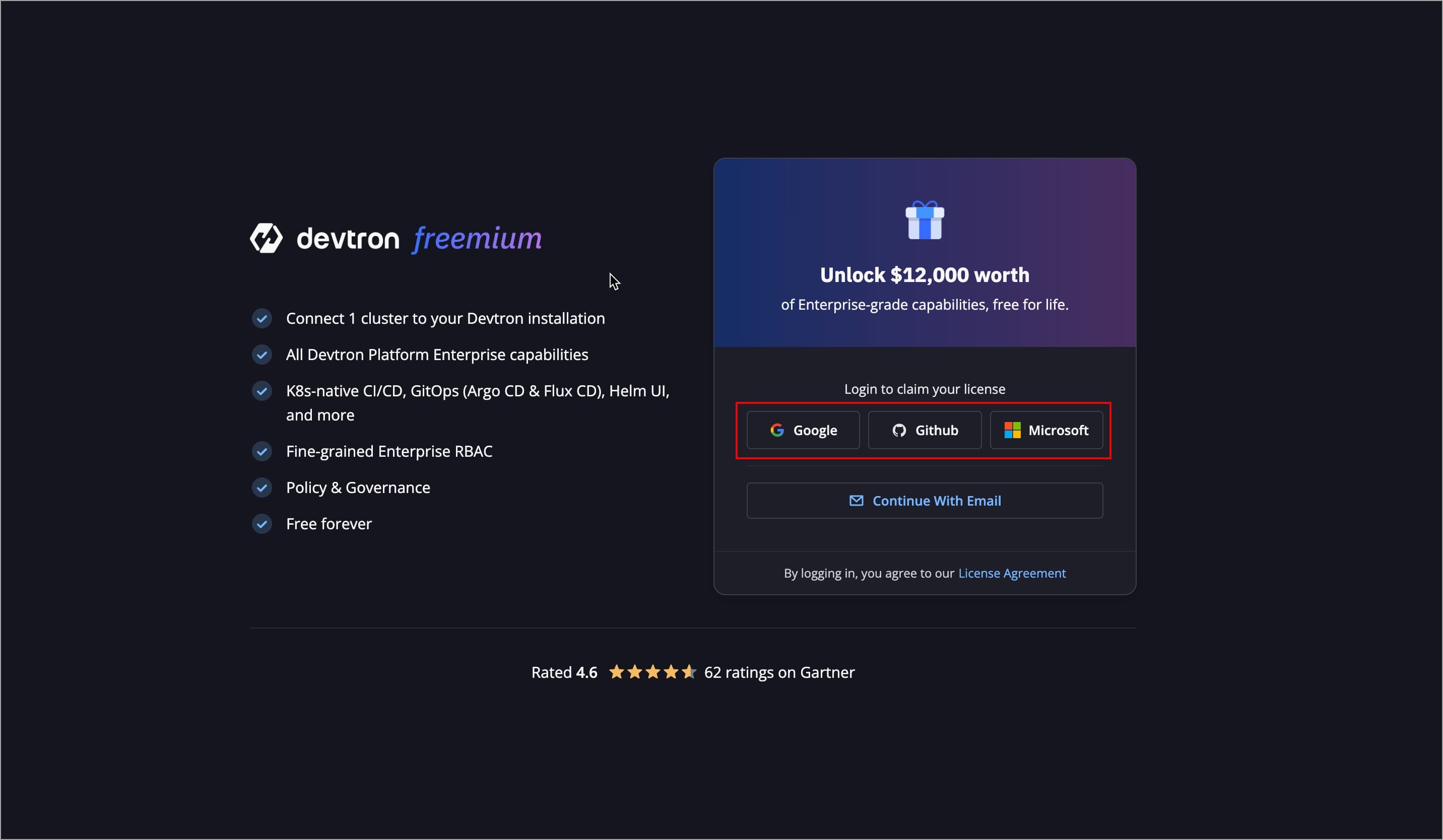
Figure 1: Selecting SSO Provider -
Once logged in, the Devtron License Dashboard will open.
-
Under Tell Us About You, fill the required basic details, and click Next to proceed to Step 2: Install Devtron.
Method 2: Sign up using Work Email
Use this method if your email is not associated with any of the SSO options provided on the screen.
-
Select Continue with Email to log in.
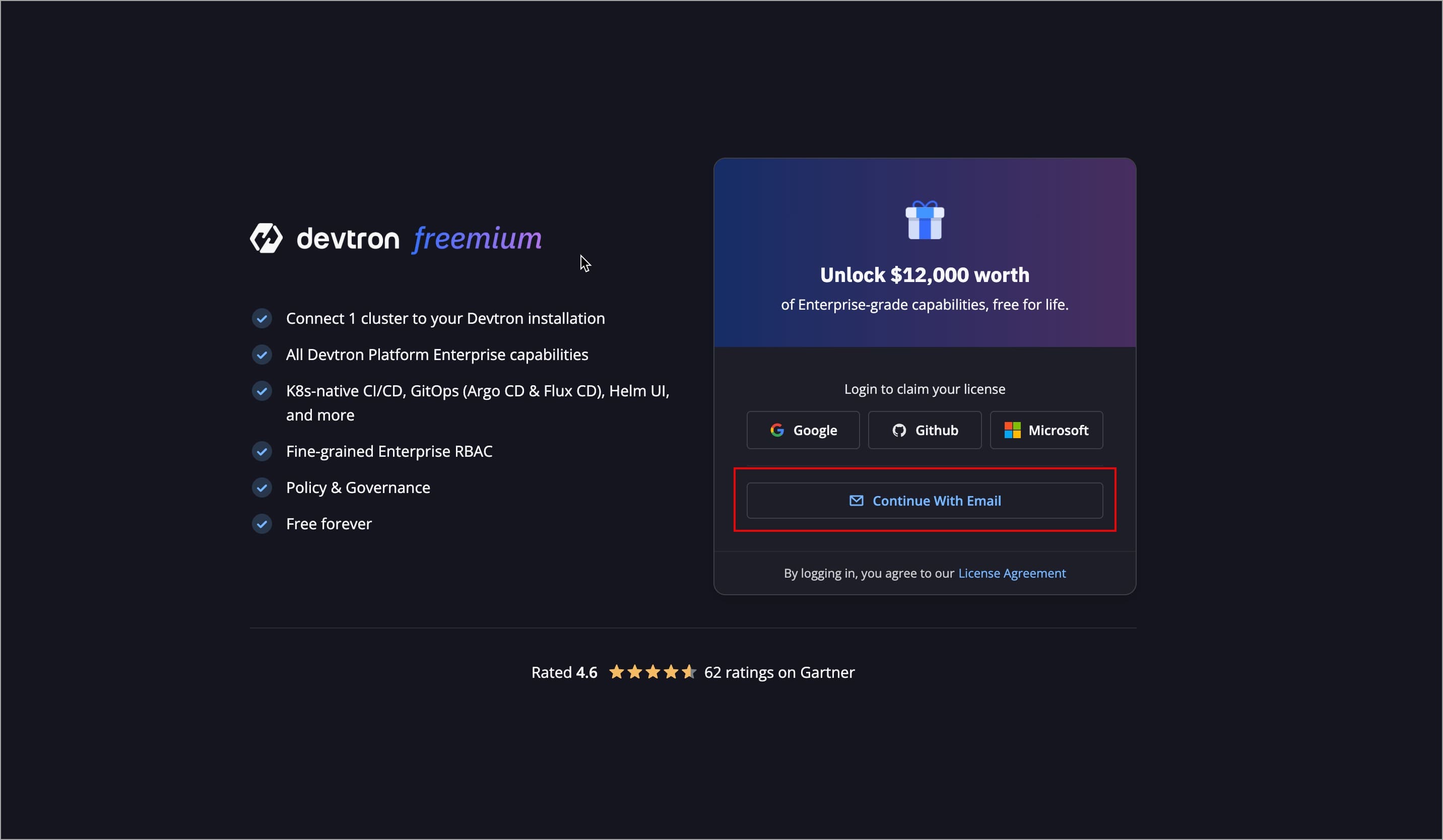
Figure 2: Selecting 'Continue with Email' -
Enter your work email and select Send Login Link
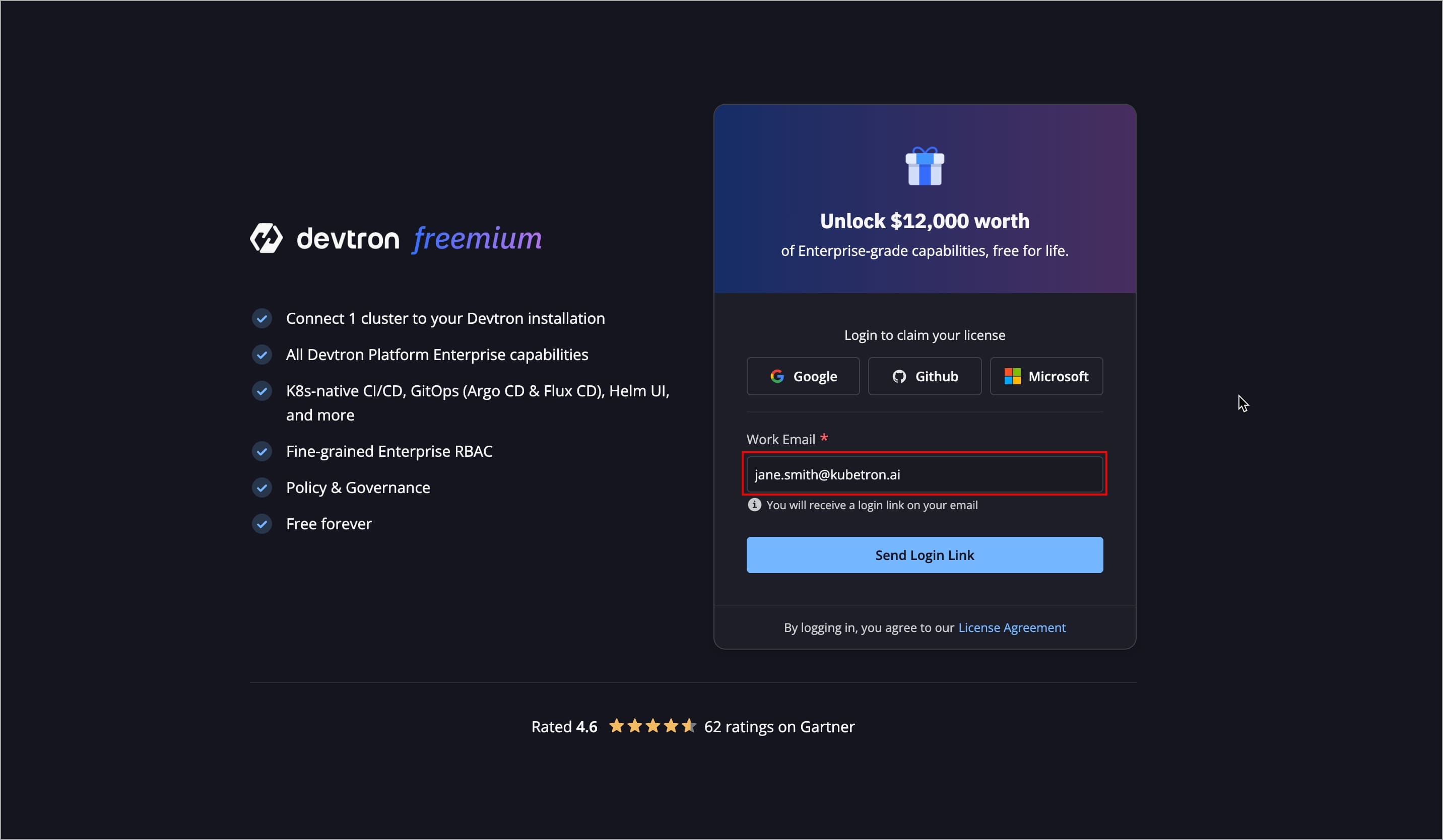
Figure 3: Entering Email -
A login link will be sent to the email address provided by you. If you do not receive the link, you can resend it after 30 seconds.
Note: Your login link will be valid only for 10 minutes.
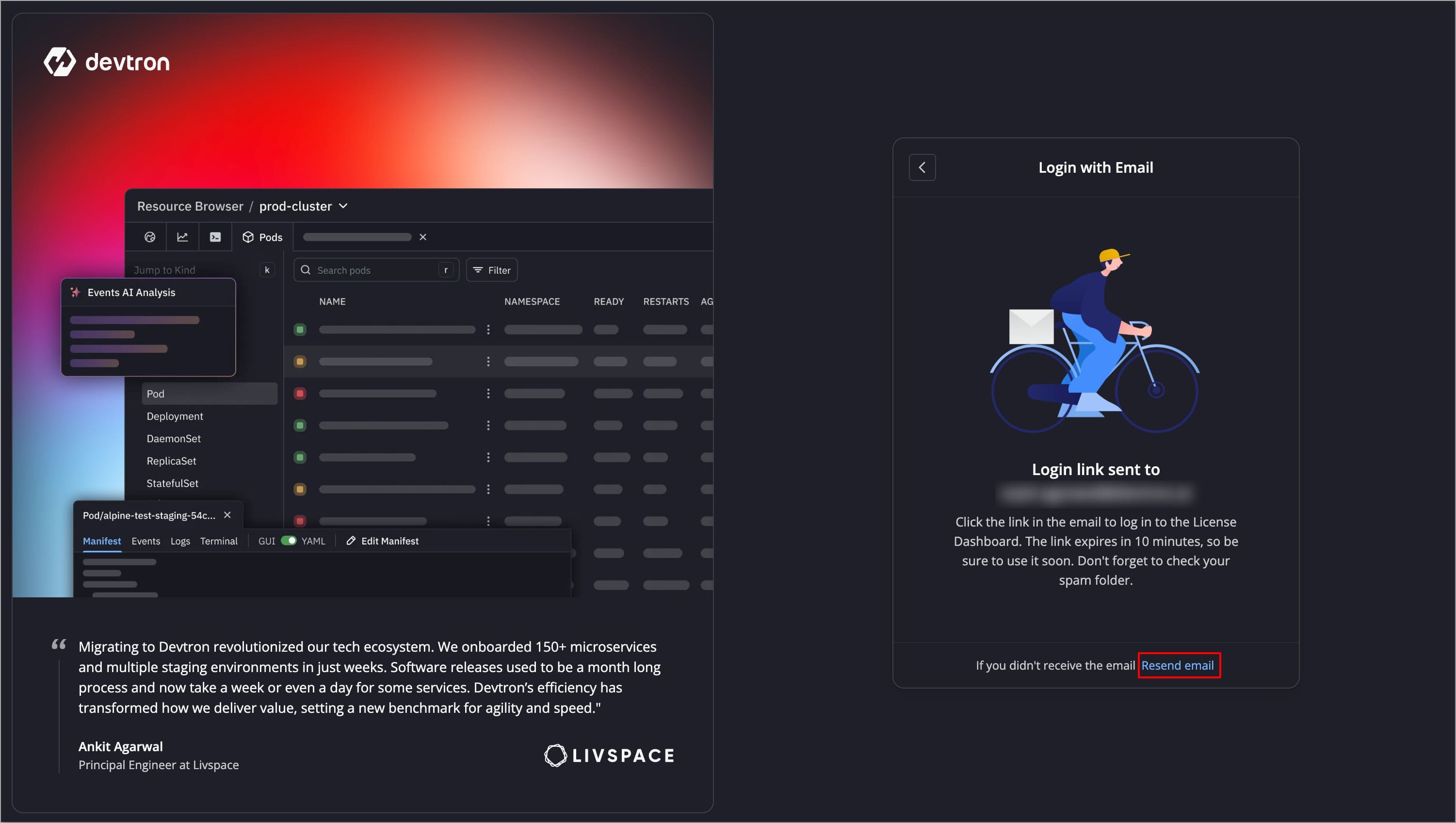
Figure 4: Sending Login Link
Did Not Receive Email?
- Check all sections of the mailbox, including the 'Spam' section.
- If the email is in the Spam section, mark it as 'Not Spam'.
-
Open the email and click Login to License Dashboard.
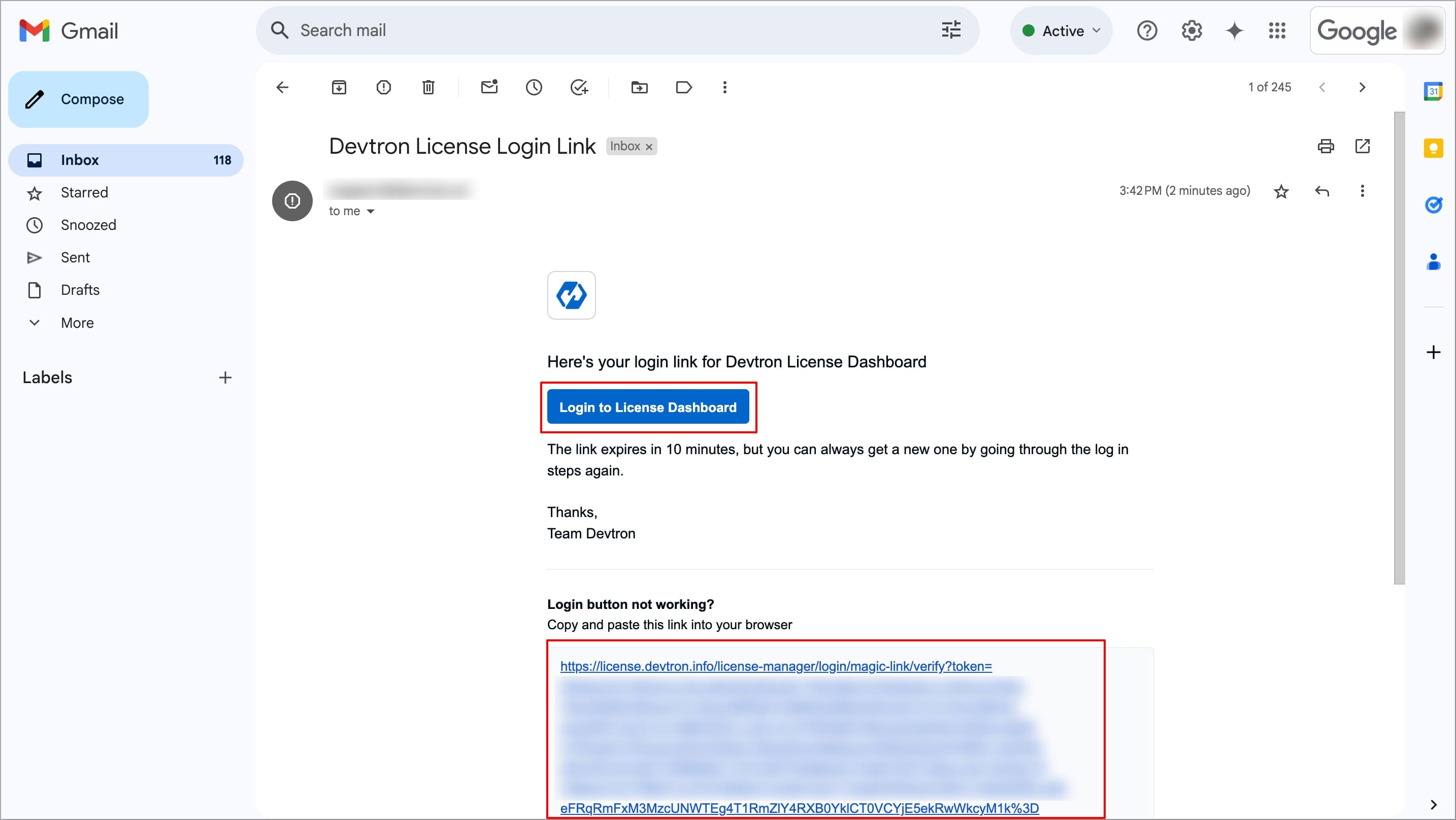
Figure 5: Email with Login Link Once logged in, the Devtron License Dashboard will open.
-
Under Tell Us About You, fill the required basic details, and click Next to proceed to Step 2: Install Devtron.
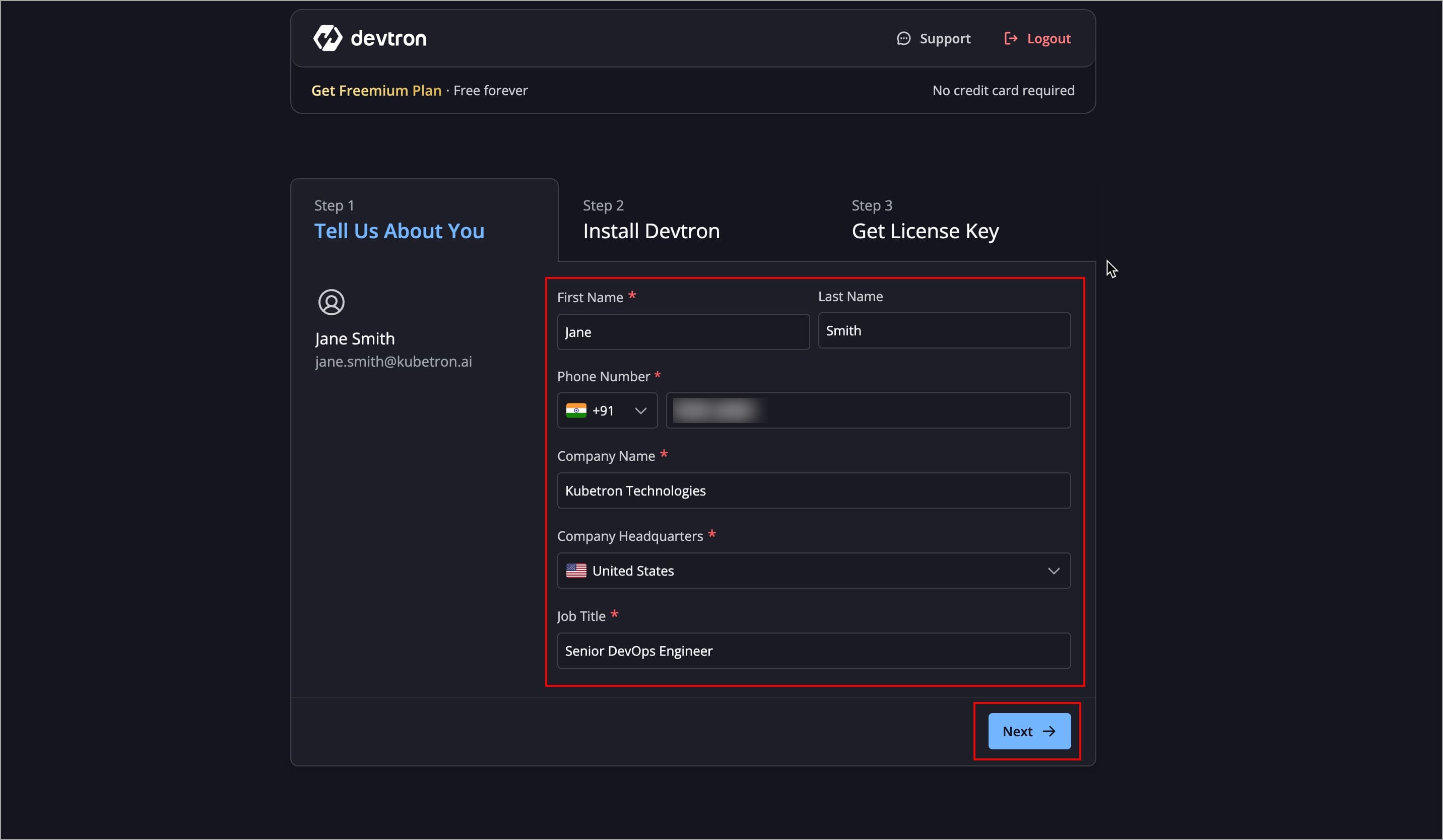
Figure 6: Entering the Details
Step 2: Install Devtron
For convenience, Devtron Freemium offers you three installation options:
- Option 1: Install on own K8s Cluster
- Option 2: Install via AWS Marketplace
- Option 3: Devtron Cloud (SaaS)
The below table will help you identify the right option for you.
| If you want to… | Install on Own K8s Cluster | Via AWS Marketplace | Devtron Cloud (SaaS) |
|---|---|---|---|
| Get started in minutes with zero setup | ❌ | ❌ | ✅ |
| Use Devtron long term | ✅ | ✅ | ❌ |
| Evaluate Devtron quickly | ❌ | ❌ | ✅ |
| Run Devtron inside your own cloud account | ✅ | ✅ | ❌ |
| Use Devtron for production workloads | ✅ | ✅ | ❌ |
| Pay nothing for Devtron | ✅ | ✅ | ❌ (30-day trial) |
Option 1: Install on own K8s Cluster
Choose this option if you want Devtron installed in your Kubernetes cluster.
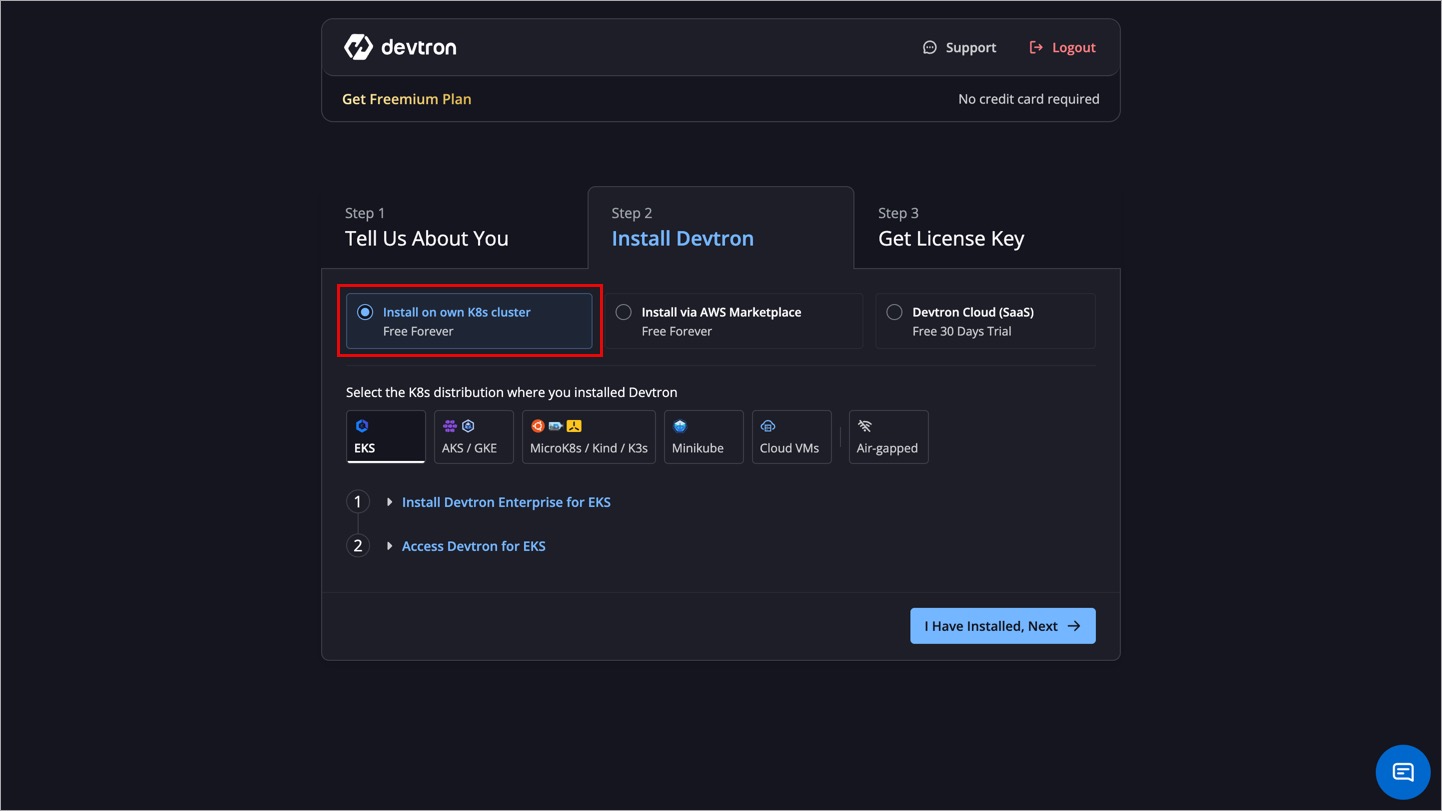
We recommend installing Devtron on a separate Kubernetes cluster, since the cluster may run critical system services. Therefore, it should be kept separate from application workloads. Also ensure your kubeconfig is properly configured.
See Additional Installation Resources for production infra recommendations, air-gapped installs, blob storage, config overrides, StorageClass, Database, Ingress setup, backups, and more.
The installation commands are directly available on the Devtron License Dashboard for supported K8s distributions.
-
Select your preferred K8s distribution.
-
Run the installation commands provided.
-
Run the dashboard access commands shown below them.
Once Devtron is installed and you have the dashboard URL, click Next to proceed to Step 3: Get License Key
Using MicroK8s/Kind/K3s/Cloud VMs? Want to Access Dashboard via NodePort? Or Locally from Remote VM?
- Access via NodePort:
To obtain the Dashboard URL on MicroK8s/Kind/K3s/Cloud VMs using NodePort, run the following command to retrieve the port number assigned to the service:
kubectl get svc -n devtroncd devtron-service -o jsonpath='{.spec.ports[0].nodePort}'
Dashboard URL: http://<HOST_IP>:<NODEPORT>/dashboard
- Local Access from a remote VM (Port Forwarding via Kubeconfig):
To obtain the Dashboard URL if Devtron is installed on a remote VM (e.g., AWS EC2, Azure VM, GCP Compute Engine) using MicroK8s, Kind, or K3s, run the following commands one-by-one:
scp user@cloud-vm-ip:/path/to/kubeconfig ~/.kube/config
kubectl config use-context <context-name> # Set the correct context.
kubectl -n devtroncd port-forward service/devtron-service 8000:80
Dashboard URL: http://127.0.0.1:8000
Option 2: Install via AWS Marketplace
Choose this option if you want a Devtron instance inside your AWS account with minimal setup effort. It will launch a preconfigured Devtron instance from AWS Marketplace.
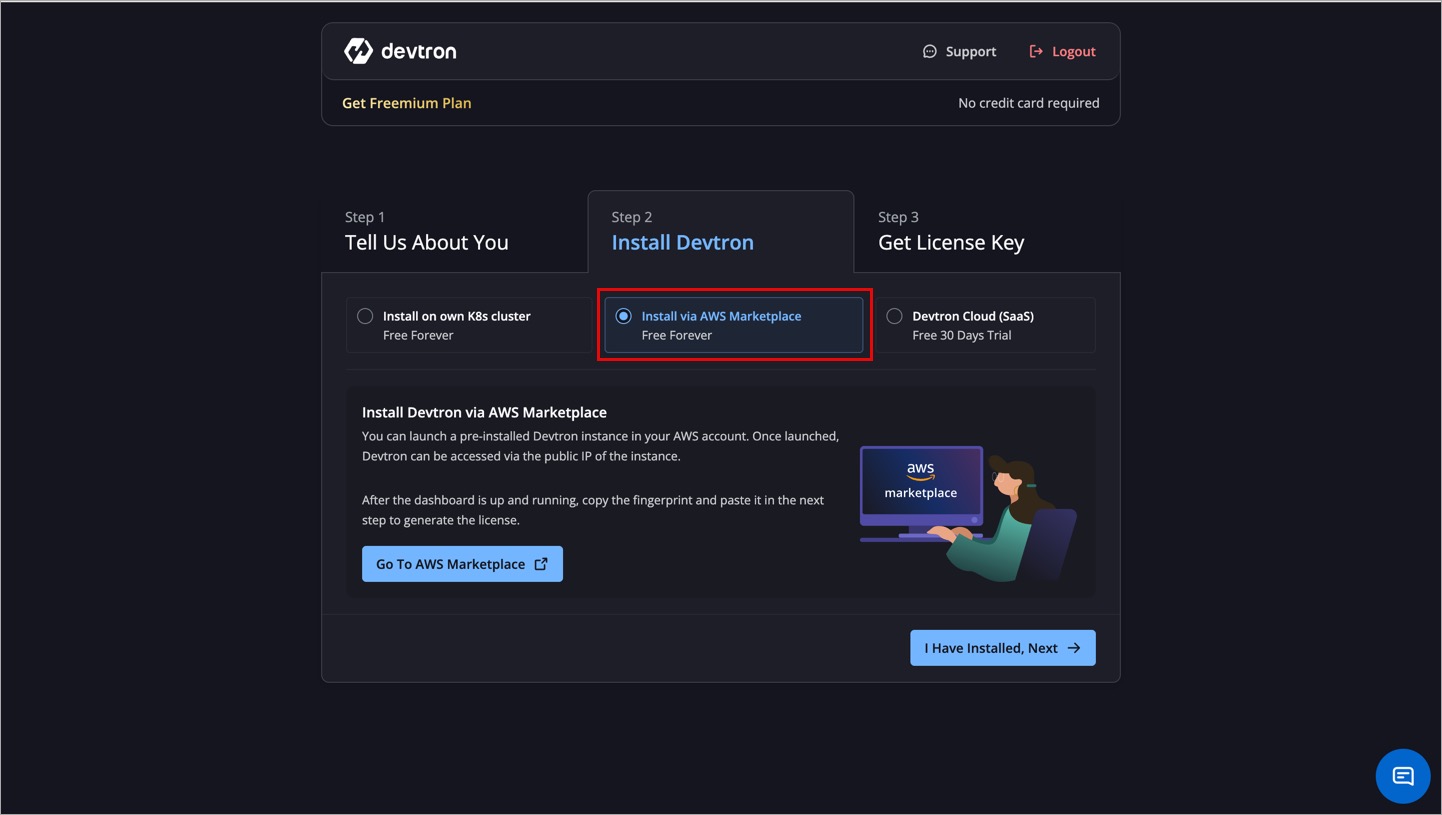
Since the instance runs inside your AWS account and infrastructure, you might incur infra costs.
Option 3: Devtron Cloud (SaaS)
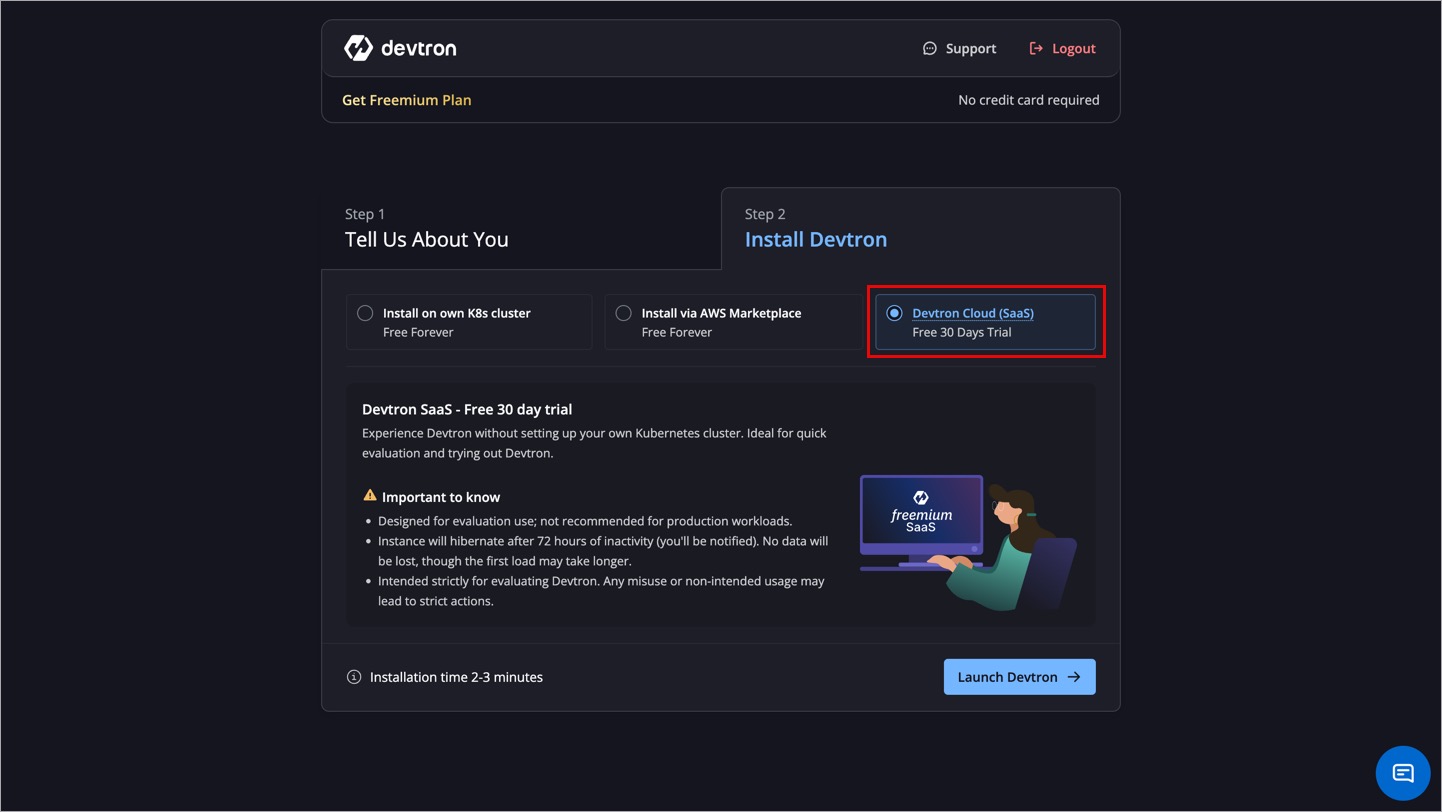
Choose this option if you want to try Devtron without setting up any Kubernetes cluster. You will directly get the credentials to log in to Devtron. This is a 30-day trial meant for fair usage and not production workloads.
-
Click Launch Devtron.
Devtron will provision the SaaS instance within a couple of minutes. The Dashboard URL and credentials will be shown on screen.
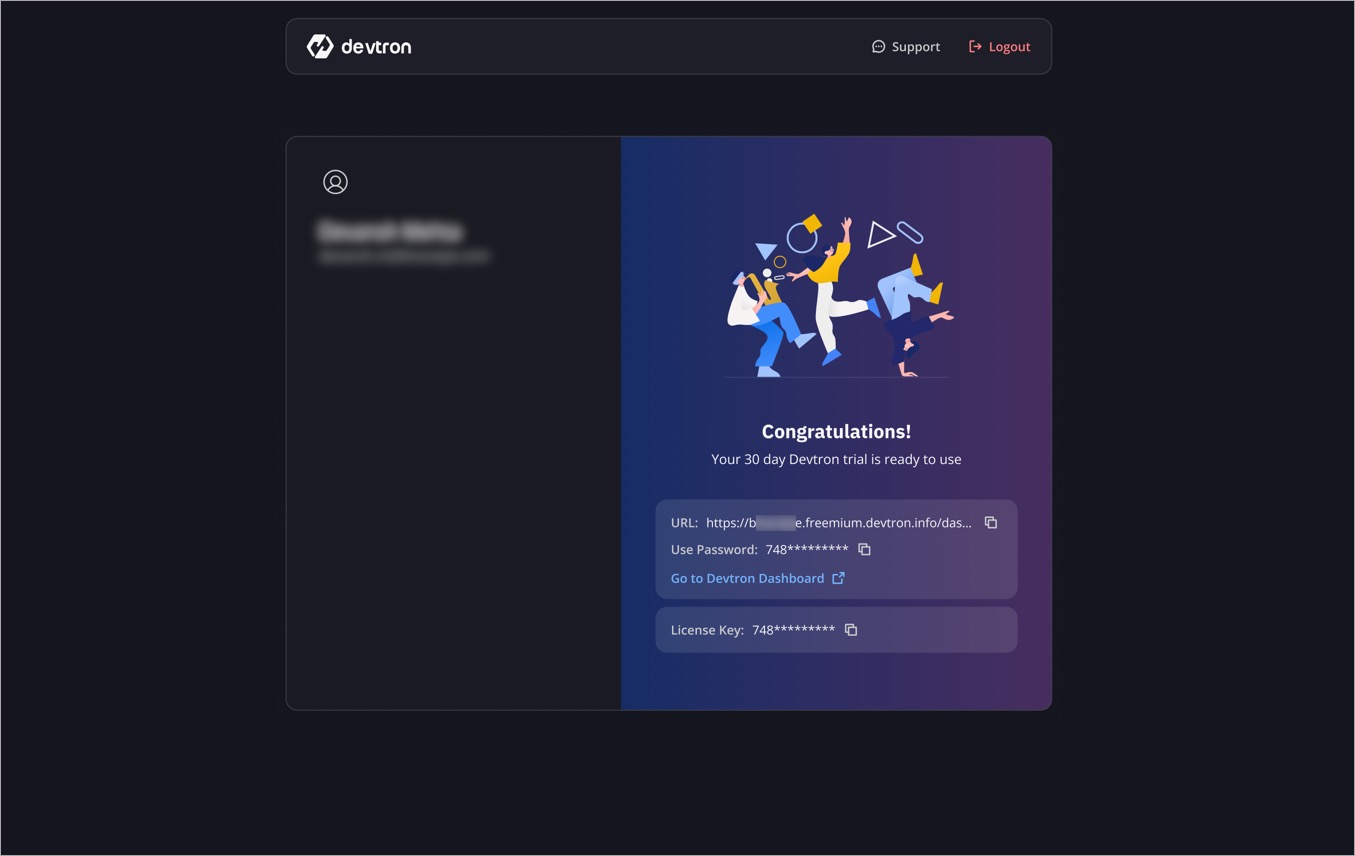
Figure 10: Enter Installation Fingerprint -
Click Go to Devtron Dashboard to open the Devtron login page.
The username will be
admin. Enter the password shown to you in the above step.
Instance will automatically hibernate after 72 hours of inactivity.
Step 3 (given below) will not be applicable for Devtron Cloud (SaaS) as you already get the license key and credentials here.
Step 3: Get License Key
You will now need to enter your Devtron Installation Fingerprint to generate a license key.
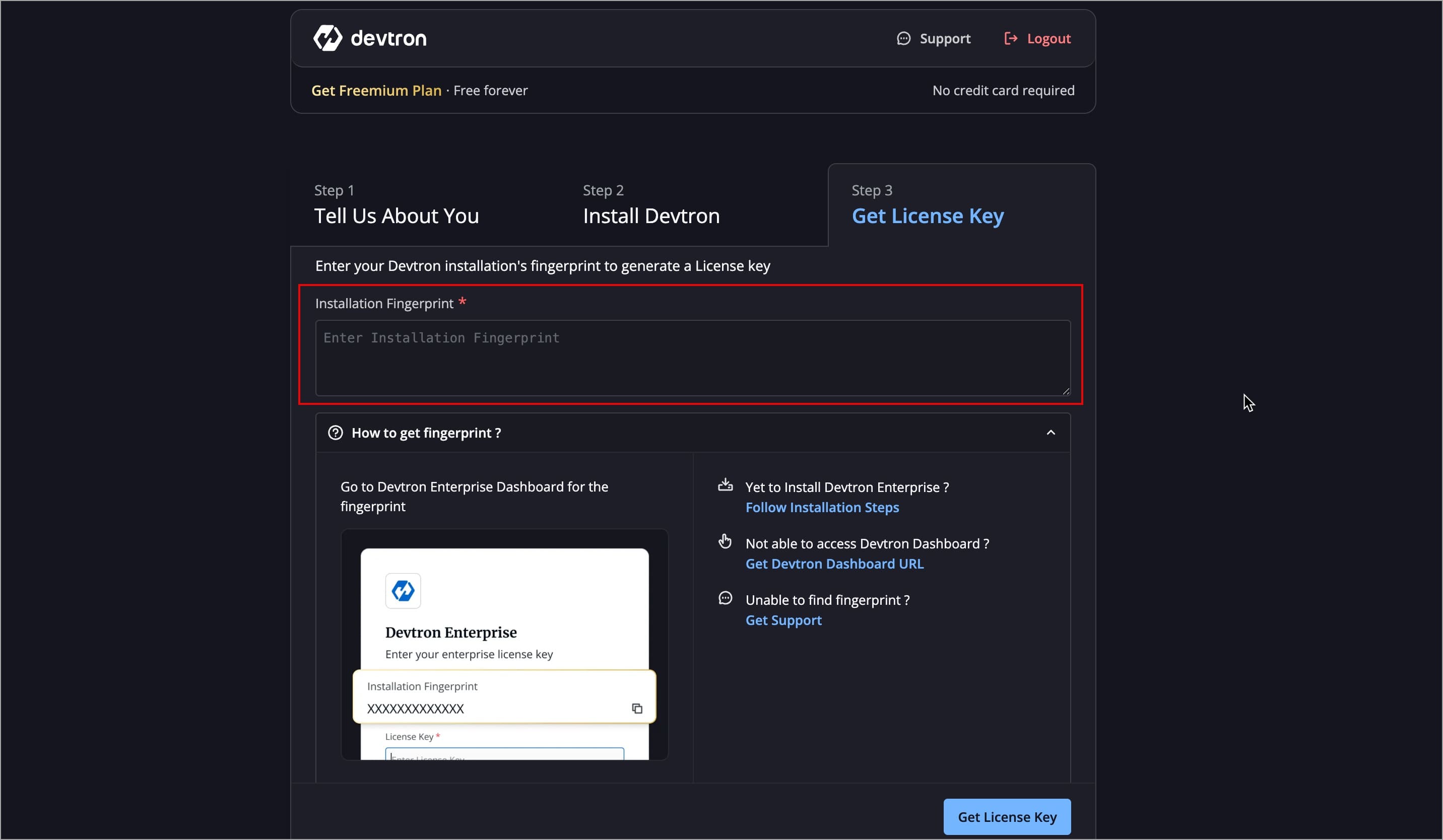
Get Devtron installation's fingerprint
To get the Installation Fingerprint, follow the below steps:
-
Visit the Dashboard URL obtained in Step 2.
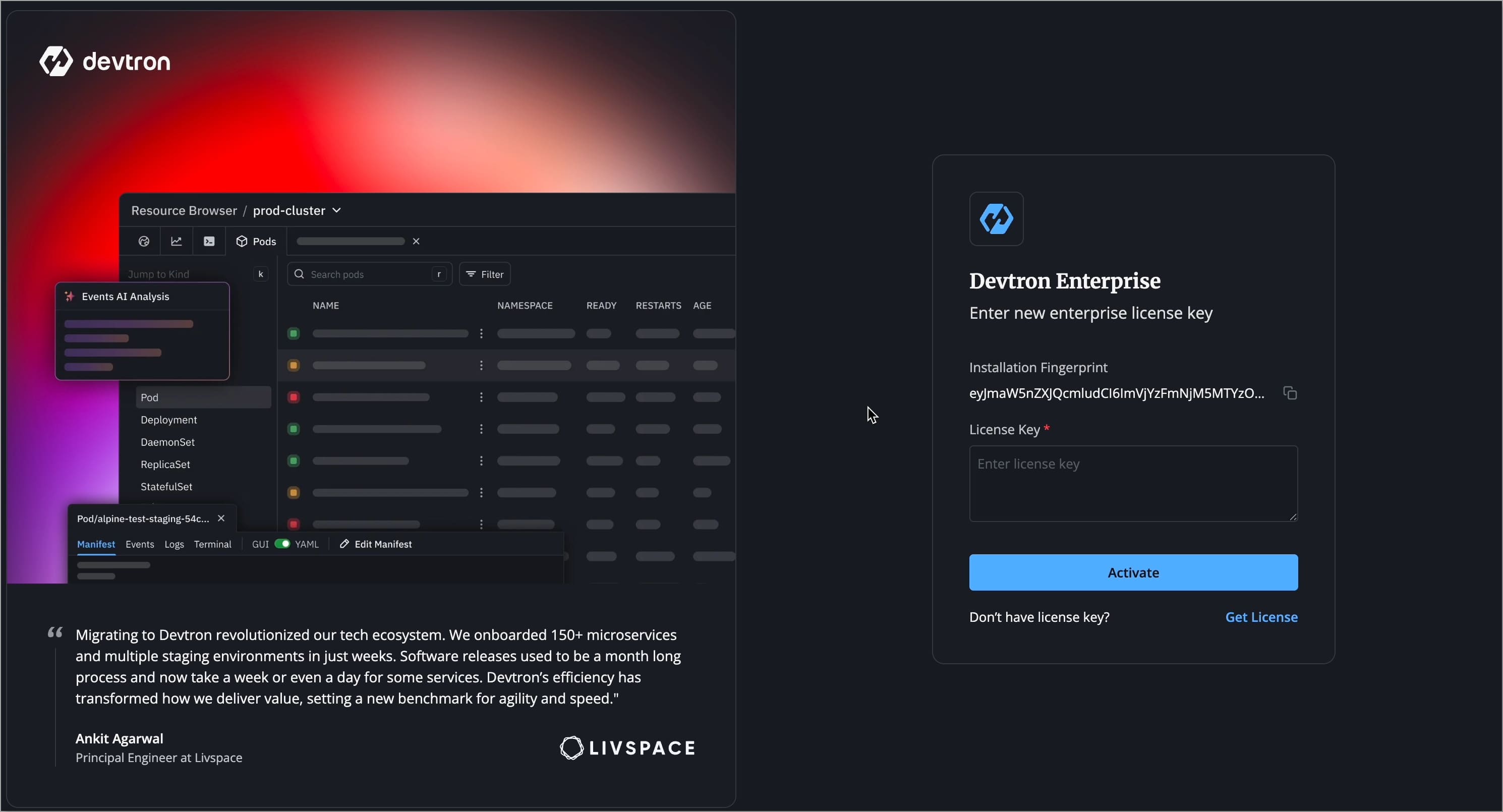
Figure 12: License Activation Screen -
You will see an installation fingerprint that uniquely identifies your installation. Copy the fingerprint.
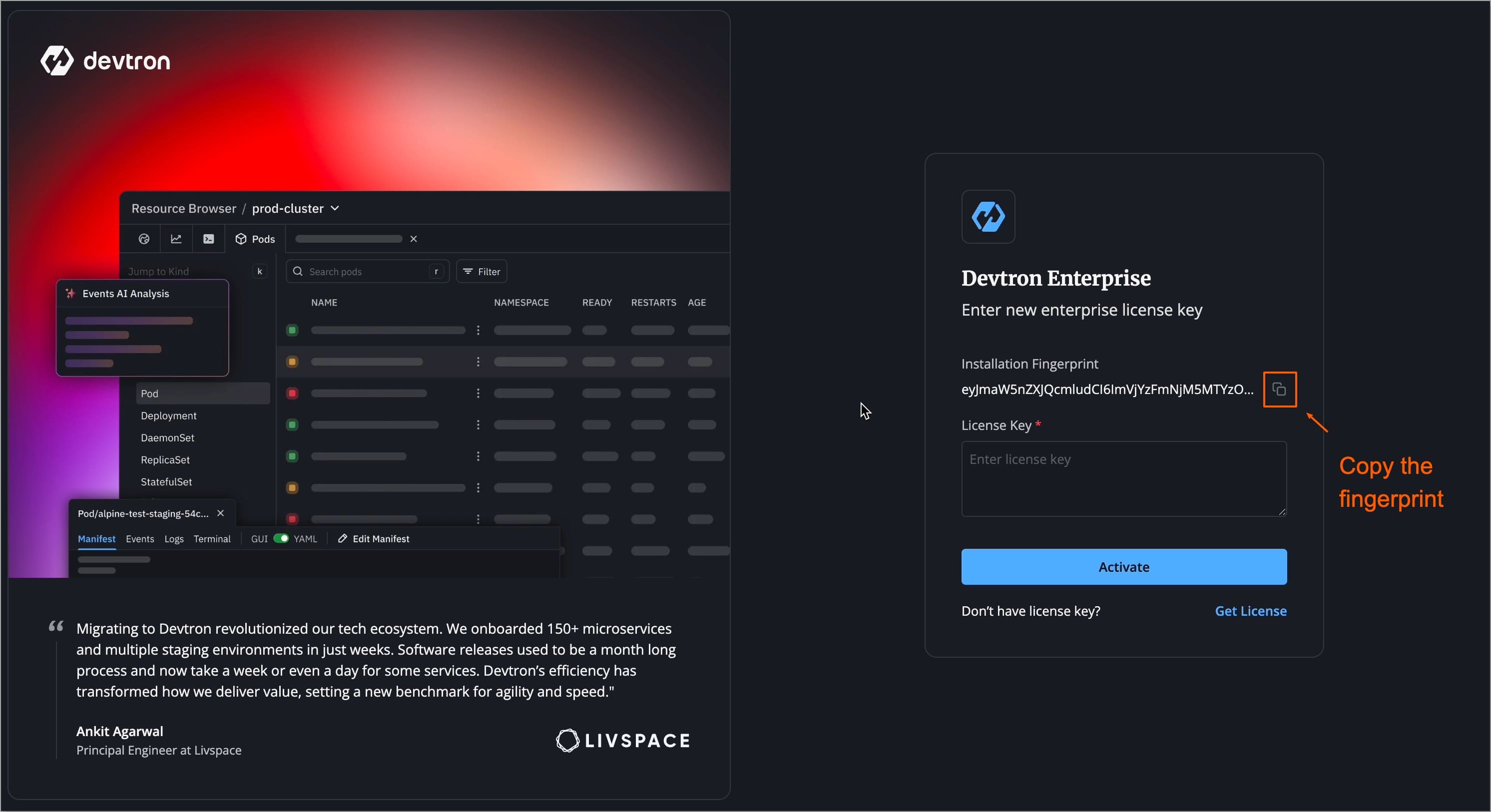
Figure 13: Copying Installation Fingerprint -
Go back to the License Dashboard and paste the fingerprint you copied earlier and click Get License Key.
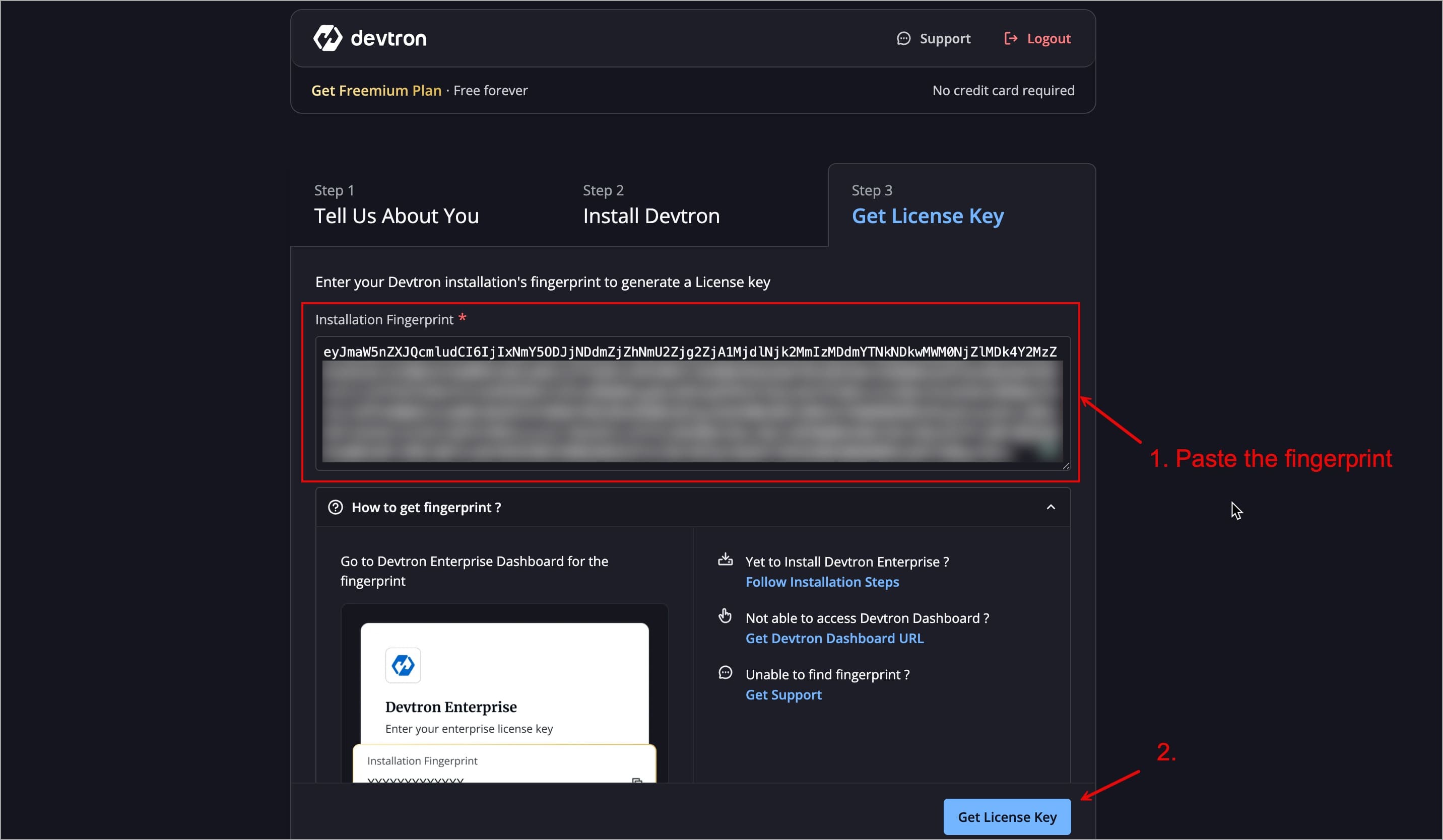
Figure 14: Pasting Installation Fingerprint -
Your license will be generated. Copy the license key.
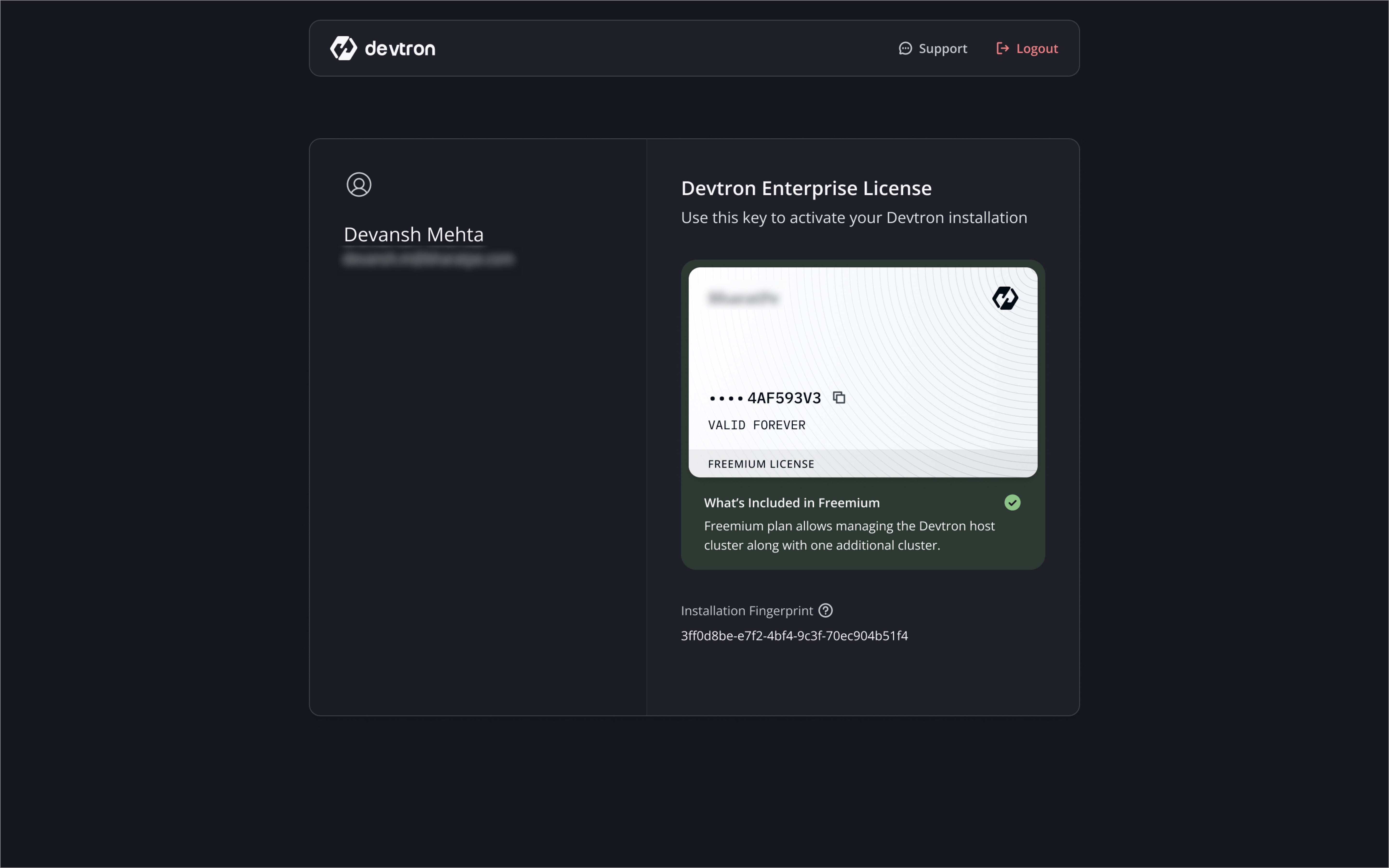
Figure 15: Copying Generated License Key
The license key you generate will be valid only for your Devtron Freemium installation.
- Only one Devtron Freemium cluster per organization.
- The license key is uniquely mapped to your installation fingerprint.
Warning
The license is bound to your Kubernetes cluster and cannot be transferred to another cluster. In case the cluster is deleted, you cannot claim freemium license on a new cluster. In that case, contact support@devtron.ai.
-
Go back to your Devtron Dashboard URL page. Paste your license key under the License Key field, and click Activate.
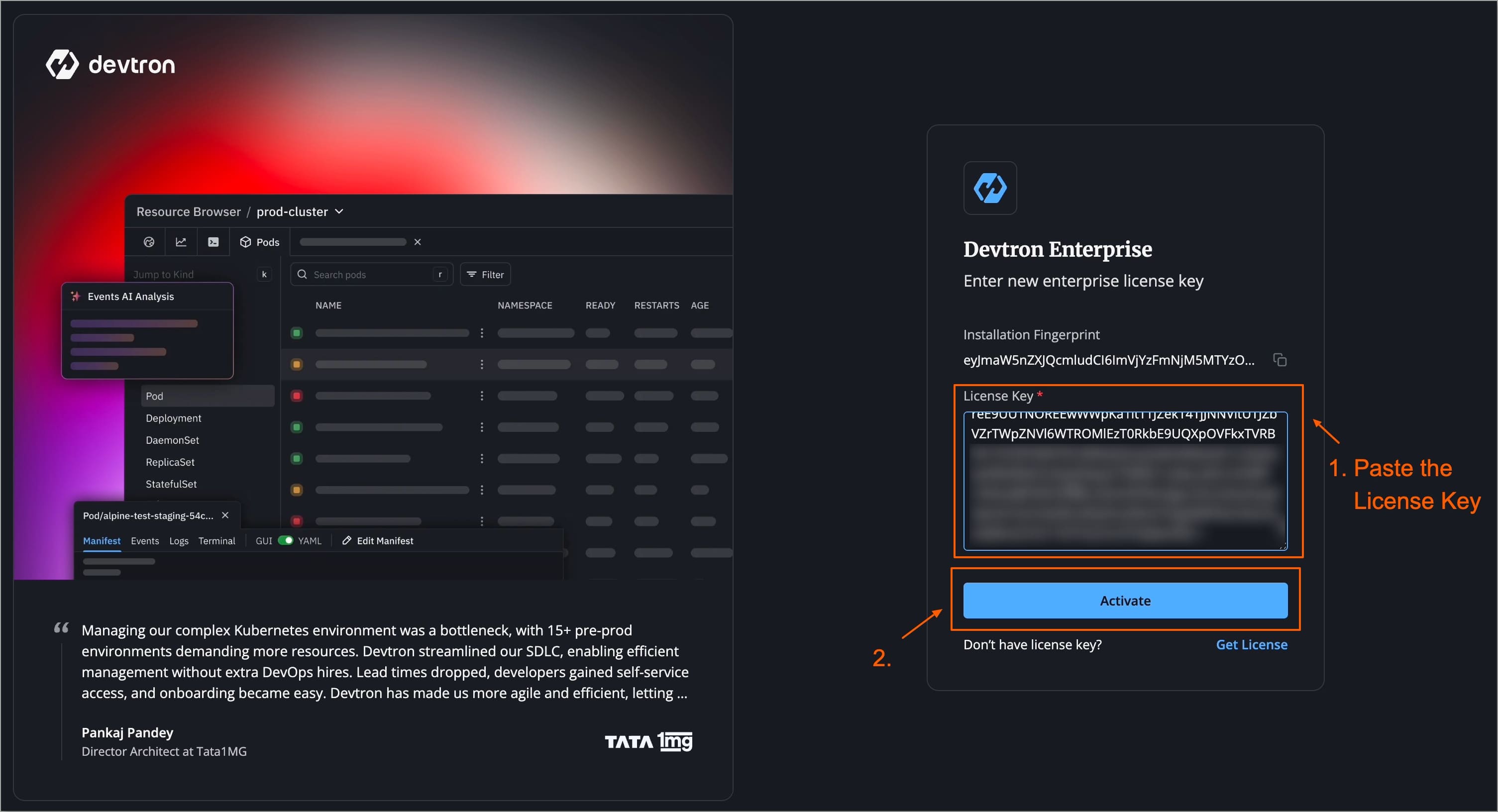
Figure 16: Pasting License Key and Activating -
Devtron Freemium will be activated, and you can log in to Devtron Dashboard.
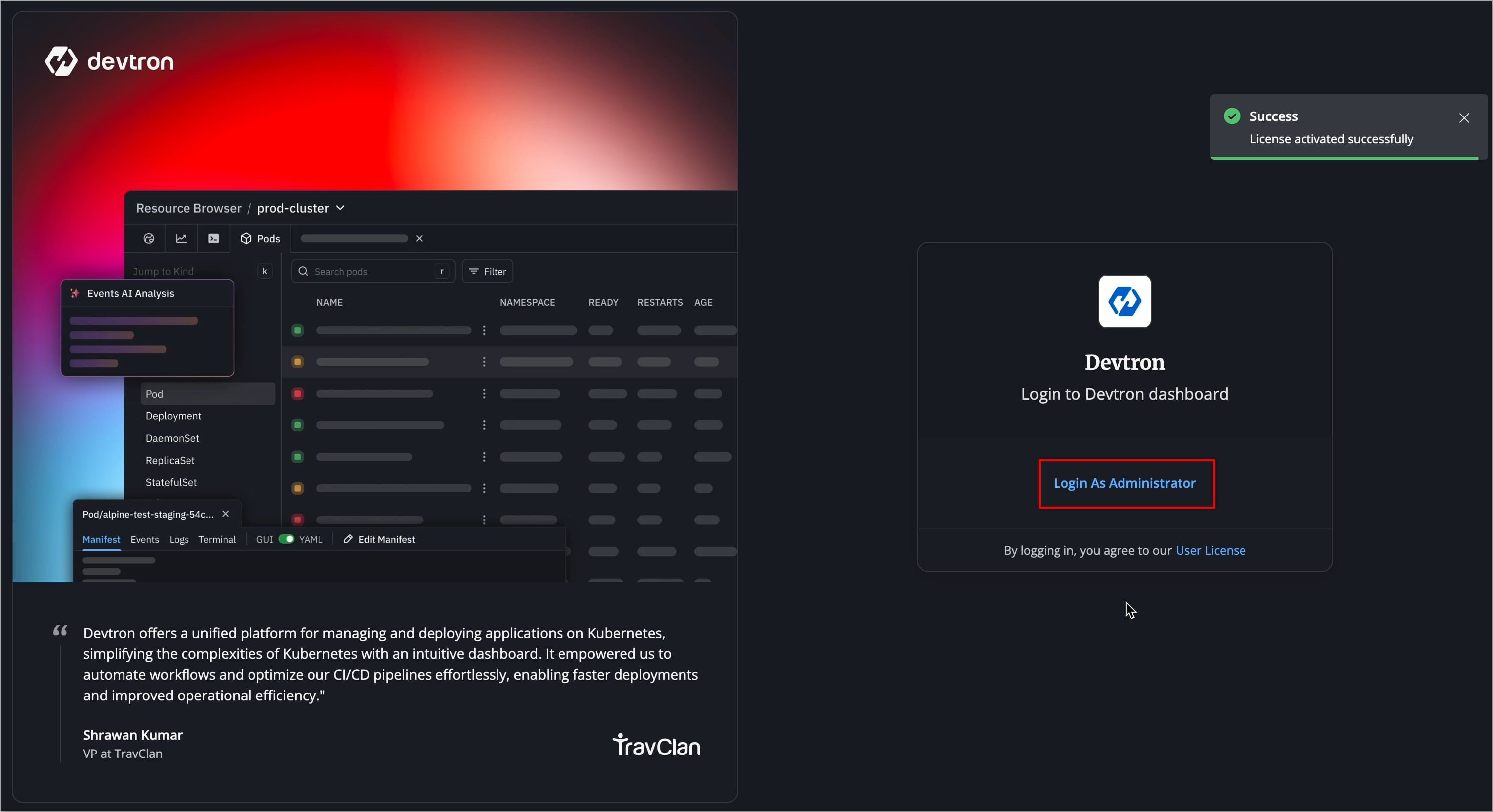
Figure 17: Log in as Administrator
Facing Issues?
Visit the Troubleshoot section to identify the issue or connect with Devtron Support.
Step 4: Log in to Devtron
-
After successful license activation, you will see the Devtron login page.
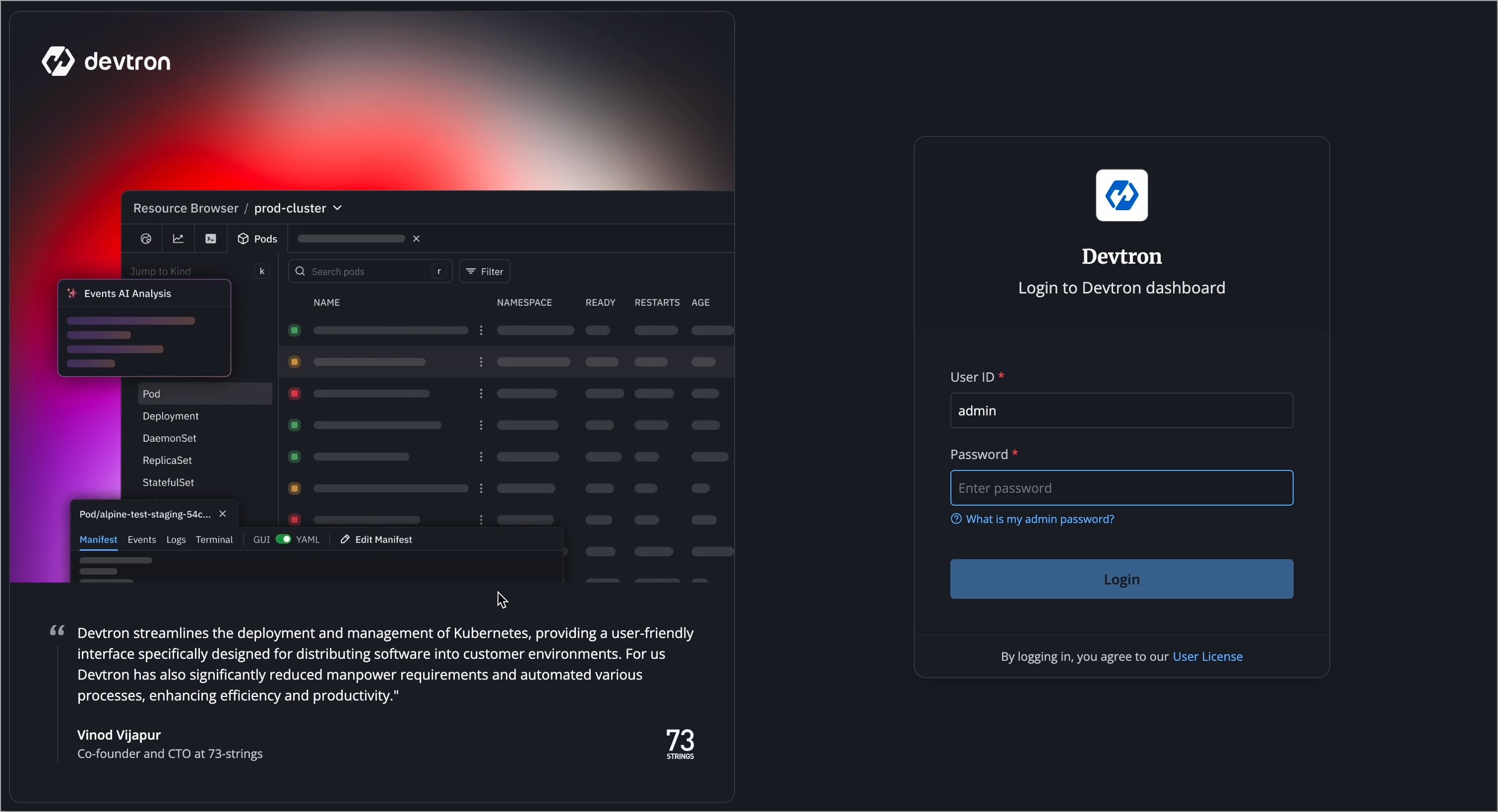
Figure 18: Devtron Login Page -
Initially, log in with the administrator credentials. By default, the username is admin. Run the following command to get the admin password:
kubectl -n devtroncd get secret devtron-secret \
-o jsonpath='{.data.ADMIN_PASSWORD}' | base64 -d
After the initial login, we recommend you set up an Single Sign-On (SSO) service like Google, GitHub, etc., and then add other members (including yourself). Thereafter, they can log in using the configured SSO.
-
After a successful login, the Devtron Dashboard will open, and you can explore all the enterprise features supported by Devtron Freemium.
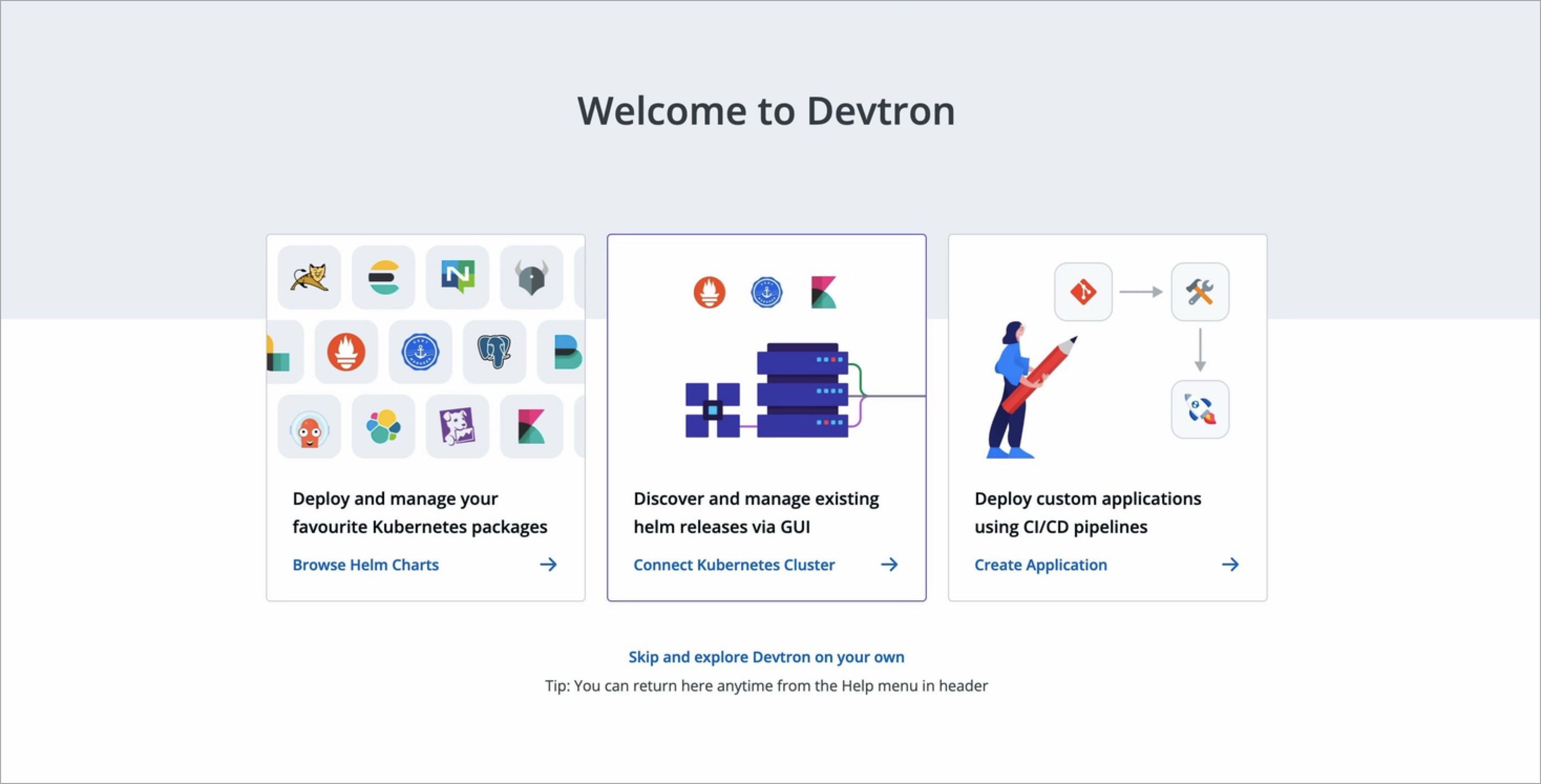
Figure 19: Devtron Dashboard
Additional Actions
Check License Details
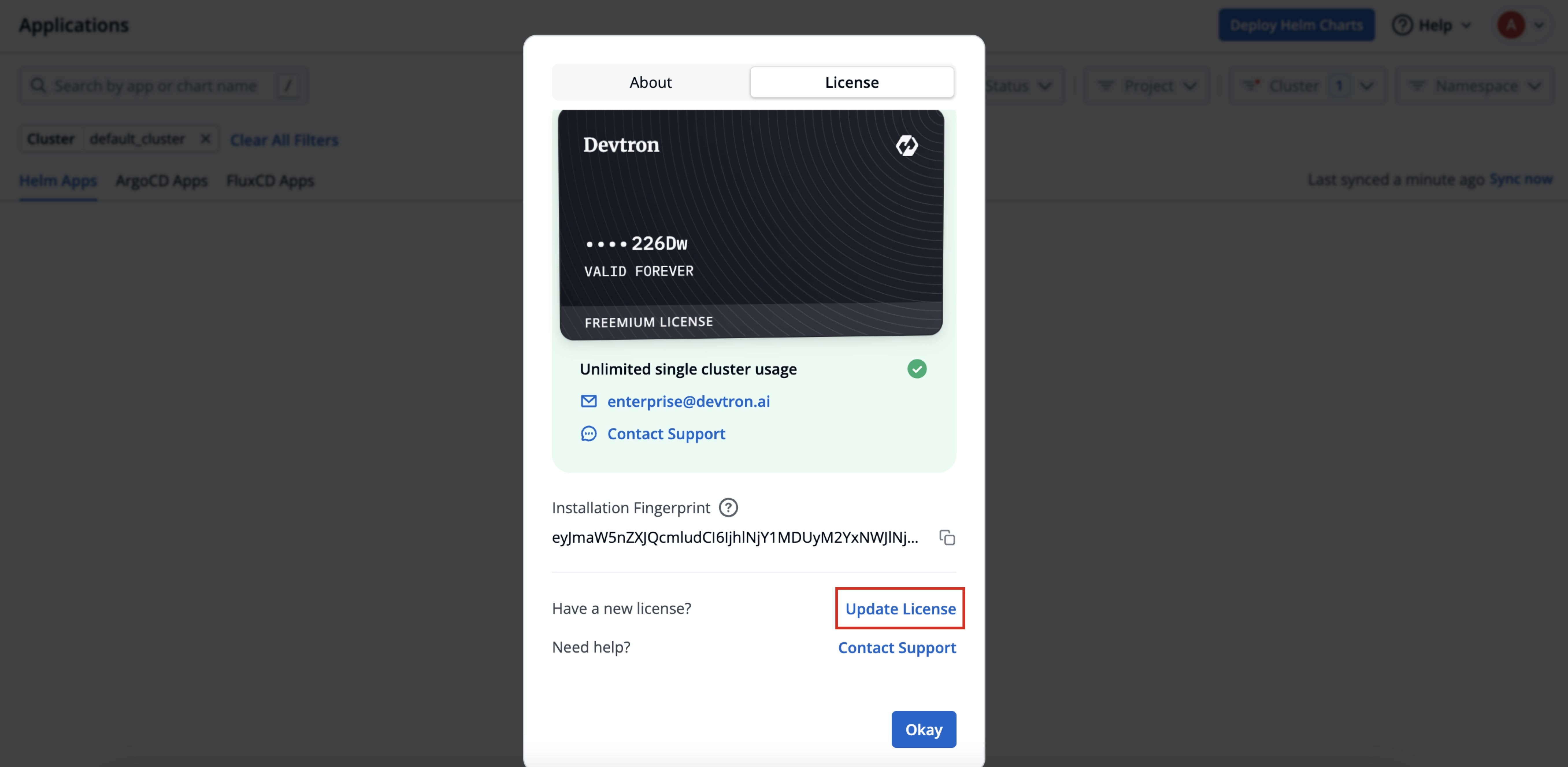
In Devtron, click the Help menu (top-right corner) → About Devtron to know the following:
- License details (Key and Expiry)
- Installation fingerprint
- Enterprise version
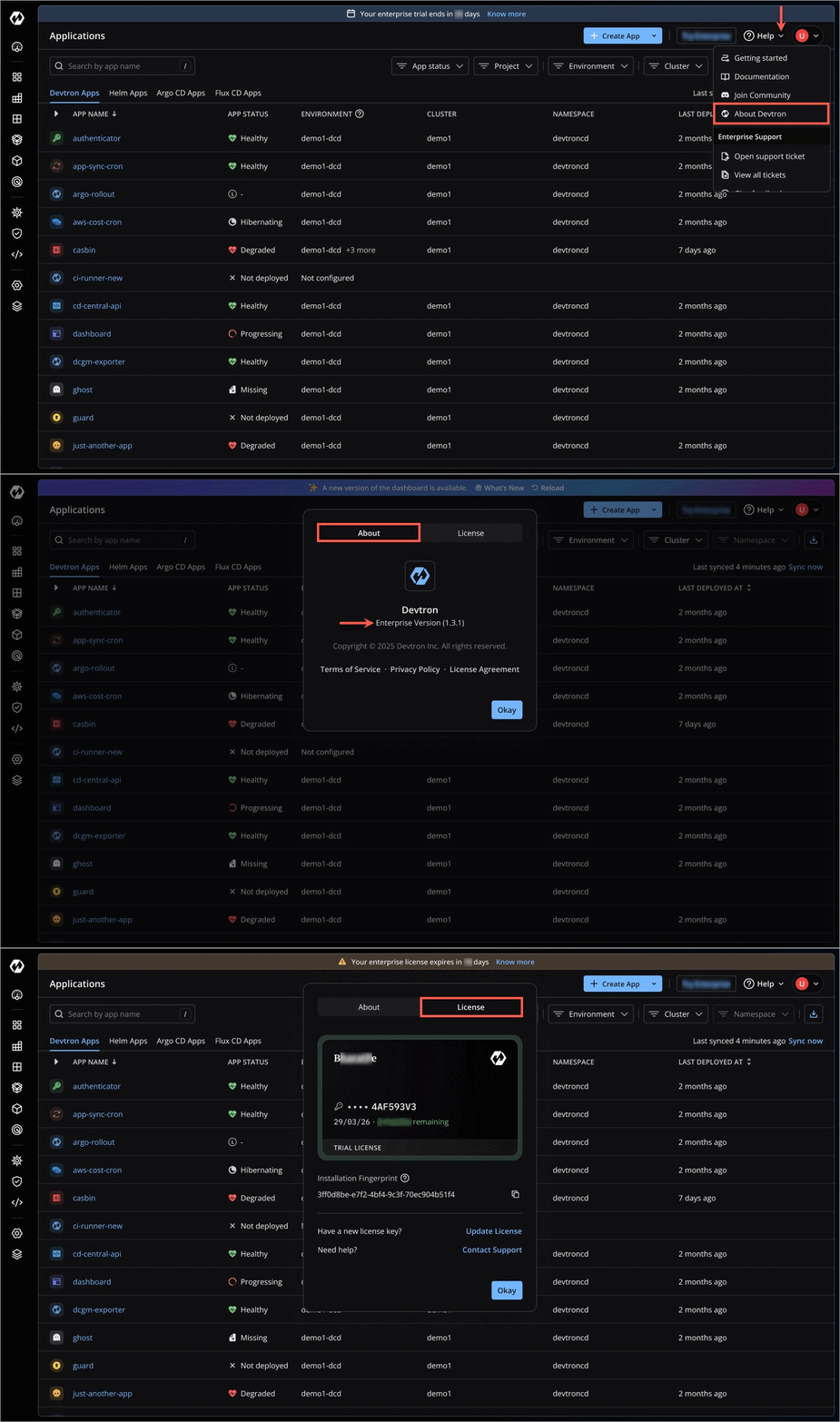
Update License
If you have a new license key, you can update the license key directly within Devtron, from the About Devtron page.
Upgrade License
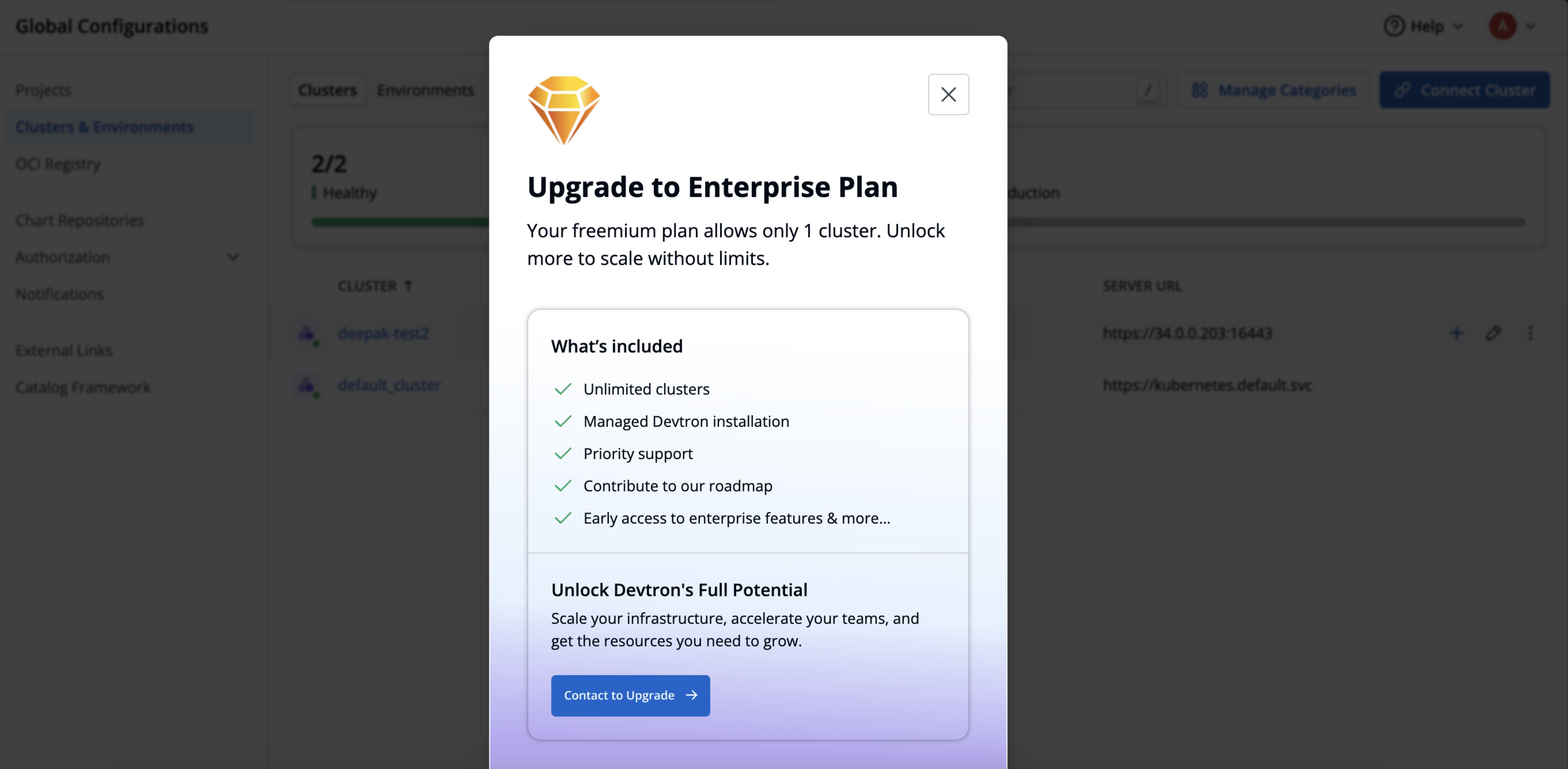
If you want to add more than one cluster, email us at enterprise@devtron.ai or reach out to your Devtron representative to upgrade your license.
Troubleshoot Issues
| Issue | What it means | Where is it shown | Solution |
|---|---|---|---|
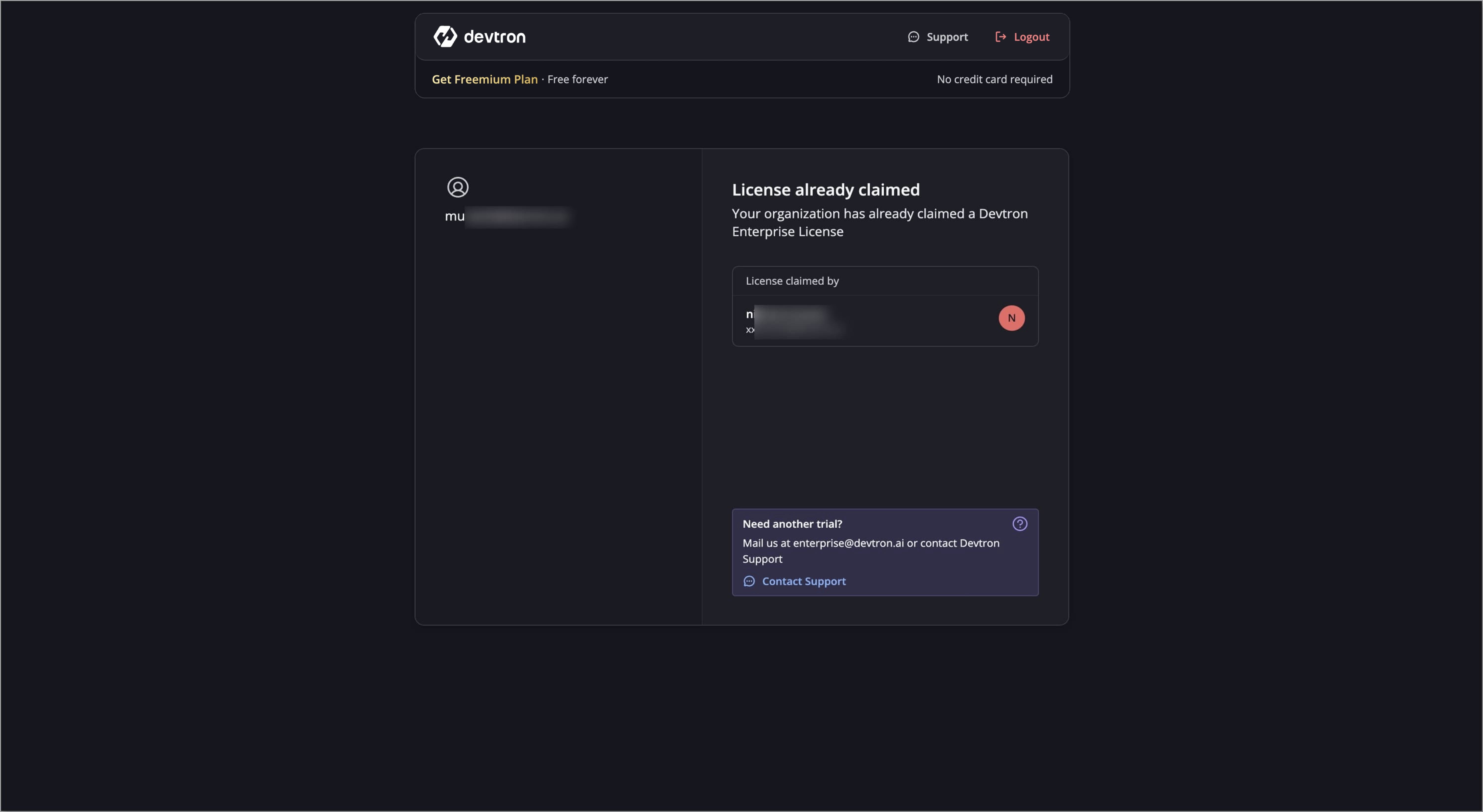
License Claimed | Someone from your organization has already availed a license | License Dashboard | Reach out to enterprise@devtron.ai |
Invalid License Key | The license key is incorrect or partial | Devtron Dashboard Page | Go to the License Dashboard and recheck the license |
License Key No Longer Valid | The license key has become invalid for your installation fingerprint | Devtron Dashboard Page | Generate a new license from License Dashboard. |
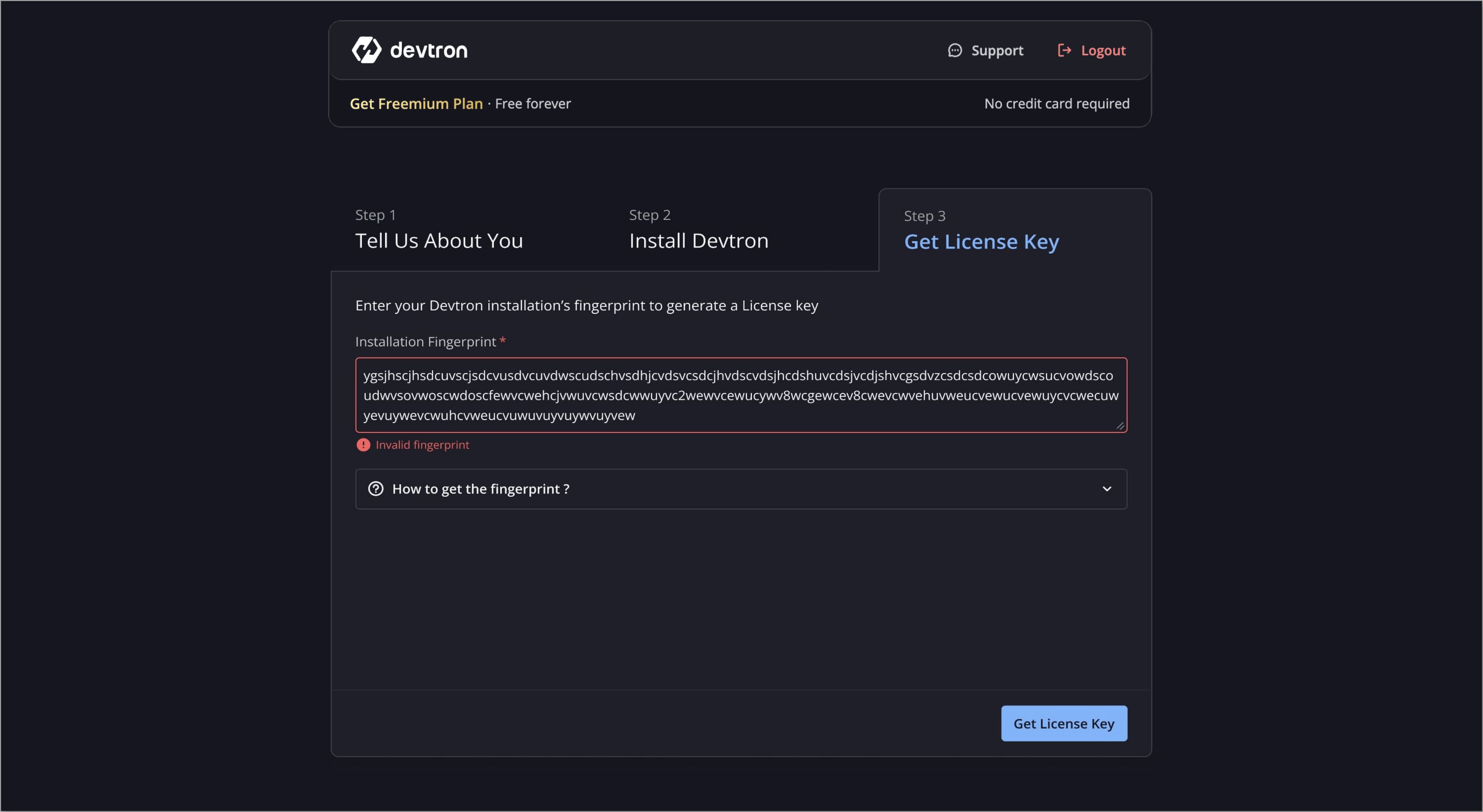
Invalid Fingerprint | The fingerprint is incorrect or partial | License Dashboard (Step-3) | Go to the License Activation Page and verify the fingerprint |
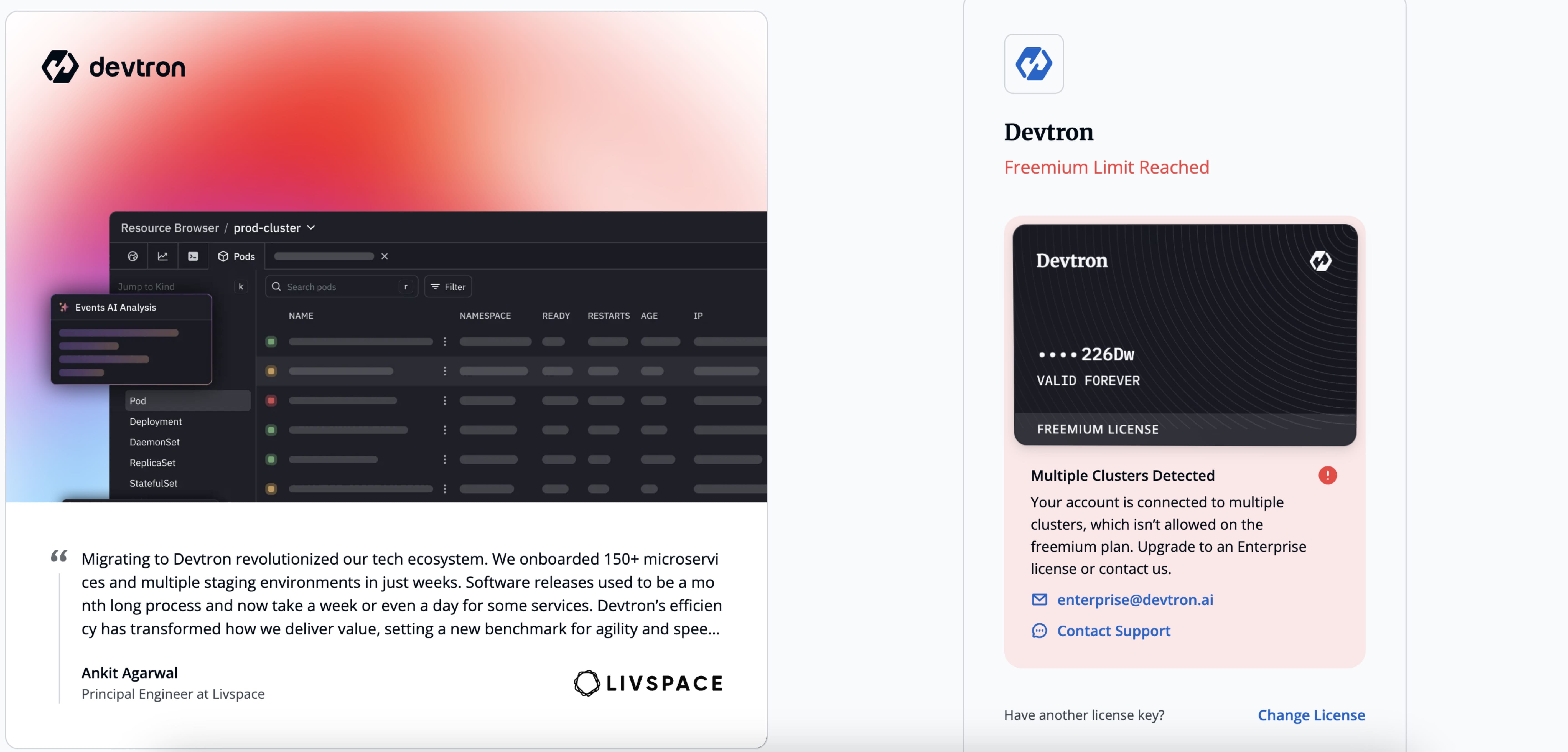
Multiple Cluster Detected | You have added more than one cluster | Devtron Dashboard Page or License Dashboard | Reach out to enterprise@devtron.ai for renewal |
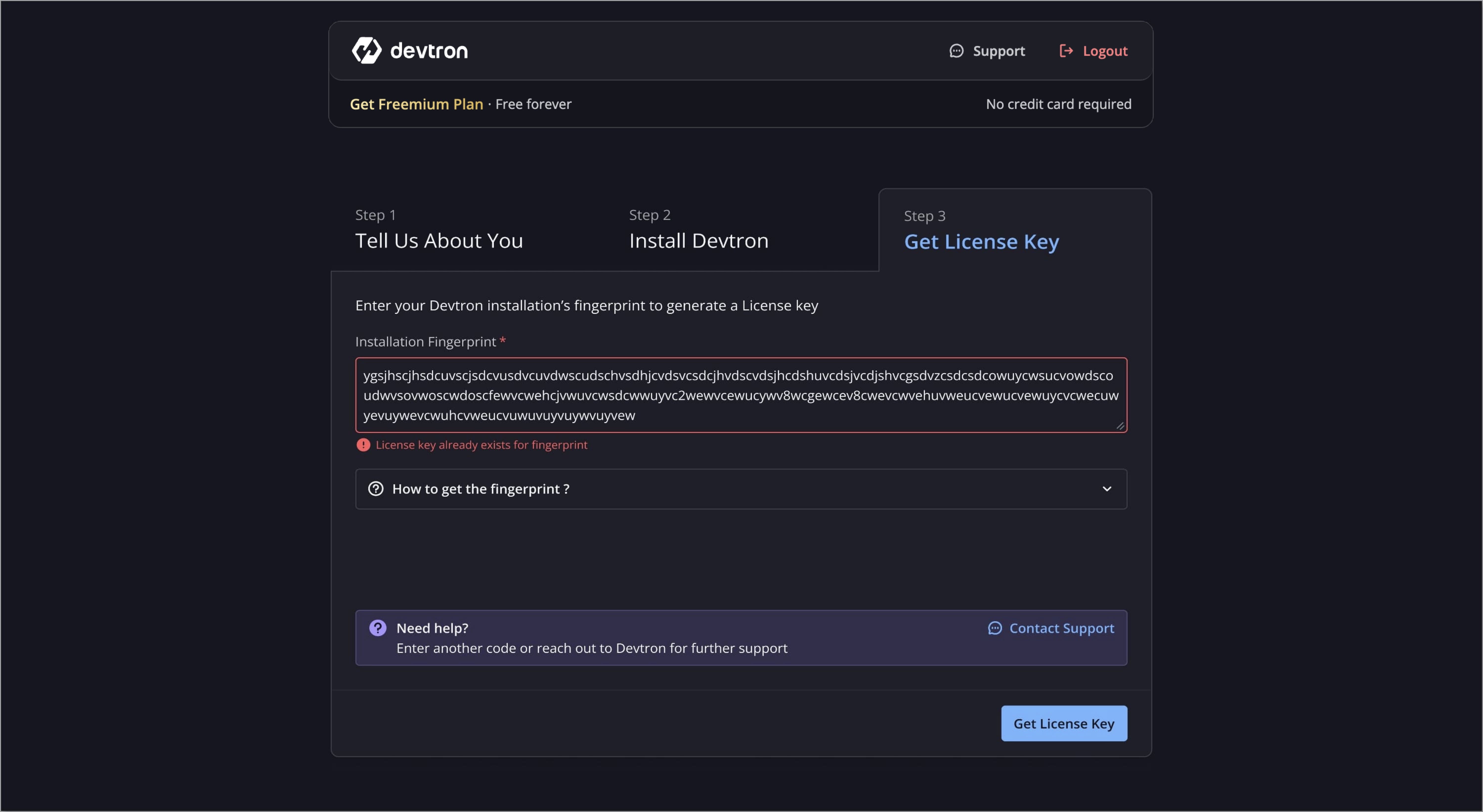
License Key Already Exists for Fingerprint | You cannot generate more than 1 license key for 1 fingerprint | License Dashboard (Step-3) | Contact Support |


FAQs
How many clusters does Freemium support?
Freemium supports adding one additional cluster (the Devtron cluster where Devtron is installed and one additional connected cluster). For more clusters, upgrade to the Devtron Enterprise.
Can I convert my existing Devtron OSS setup to Freemium?
We don’t recommend converting an existing OSS setup. For the best experience, perform a fresh Freemium installation.
Refer Step 2: Install Devtron for the installation.
Can I switch from Freemium to a fully Enterprise one without reinstalling?
Yes. You don’t need to reinstall.
Contact Devtron Support to obtain a full Enterprise license key, then update the key in your existing setup.
Steps: In Devtron, go to Help → About Devtron → License → Update License, paste the Enterprise license key, and select Activate.
Your apps, pipelines, and settings remain intact.
Is my Freemium license transferable to another Kubernetes cluster?
No. The Freemium license is bound to your current Kubernetes cluster and cannot be transferred.
If the cluster is deleted, you will not be able to claim a Freemium license on a new cluster.
If you need help, contact support@devtron.ai.